Author: admin

  • Waterpik Cordless Advanced Portable Water Flosser: A Practical Guide to Rechargeable Oral Irrigation

    Waterpik Cordless Advanced Portable Water Flosser: A Practical Guide to Rechargeable Oral Irrigation

    Cleaning between the teeth is an important part of maintaining an everyday oral-care routine. A toothbrush primarily cleans the accessible surfaces of the teeth, while interdental cleaning helps address areas that are harder to reach with brushing alone. Traditional dental floss remains one option, but some people prefer using a water flosser that directs a controlled stream of water around and between the teeth.

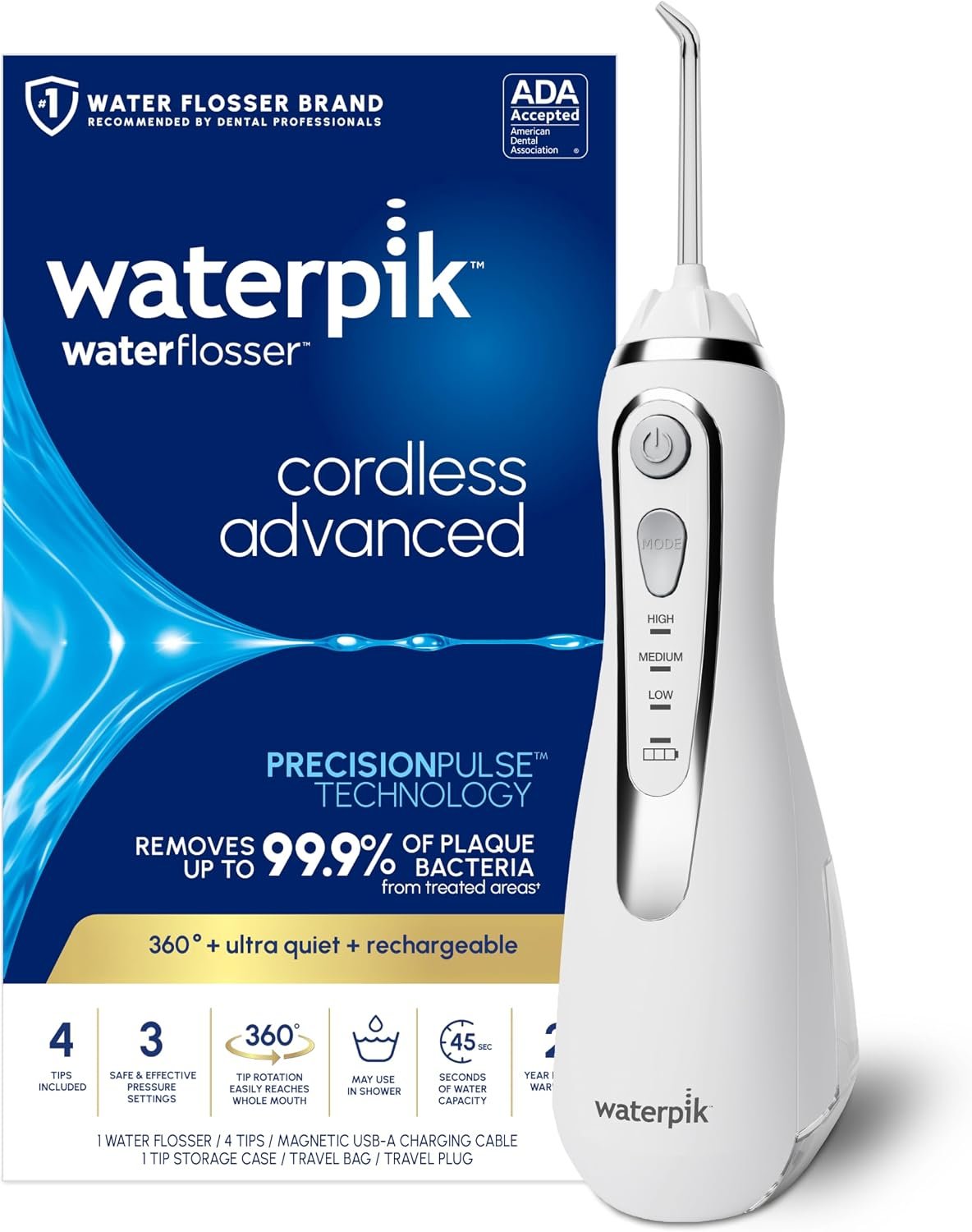
    The Waterpik Cordless Advanced Portable Water Flosser is a rechargeable oral irrigator designed for people who want a cordless alternative to a countertop water flosser. The white version referenced here is part of Waterpik’s Cordless Advanced family and is designed around portable use, rechargeable operation, multiple pressure settings, and interchangeable tips.

    Waterpik describes the Cordless Advanced as a rechargeable cordless water flosser with three pressure settings, a 45-second water reservoir, a magnetic charging system, a rotating tip handle, and a waterproof design intended for shower use. The manufacturer also identifies it as ADA accepted.

    The American Dental Association’s Seal of Acceptance is relevant because it provides information beyond a manufacturer’s own marketing claims. The ADA explains that products carrying the Seal have been evaluated according to its requirements for safety and effectiveness for the claims being made.

    At the same time, a water flosser should be understood as an oral-hygiene tool rather than a replacement for professional dental care. The appropriate method of cleaning between teeth can vary depending on a person’s dental health, restorations, orthodontic appliances, and preferences.

    This guide explains how the Waterpik Cordless Advanced works, the role of its different features, practical ways to incorporate it into an oral-care routine, and factors worth considering before choosing a cordless water flosser.

    Introduction

    Daily brushing is only one part of an effective oral-care routine.

    The spaces between teeth and areas around the gumline can be difficult to clean with a toothbrush alone. Interdental cleaning methods are designed to address those areas.

    Traditional string floss works by physically sliding between teeth to remove plaque and debris. Interdental brushes can also be useful in appropriate spaces. A water flosser takes a different approach: it uses a stream of pulsating water to clean around teeth and along the gumline.

    The Waterpik Cordless Advanced is designed to make that approach more portable.

    Unlike countertop water flossers that remain beside a sink, the Cordless Advanced contains its reservoir, pump, battery, and controls in a single handheld unit. This means it can be moved more easily between locations.

    The manufacturer describes the model as waterproof and suitable for use in the shower.

    That portability can be particularly relevant to people who travel frequently or have limited bathroom counter space.

    The device also offers three pressure settings, allowing users to select a level that feels appropriate for their needs. A lower setting may be more comfortable for someone who is new to water flossing, while another user may prefer a higher setting.

    The goal should not be maximum pressure. Interdental cleaning is about consistent coverage and appropriate technique rather than simply using the strongest setting.

    Key Features

    Cordless Rechargeable Design

    The most obvious difference between the Cordless Advanced and a countertop water flosser is the lack of a permanent power cable.

    The device uses a rechargeable battery, allowing the user to operate it without connecting the handle to an electrical outlet during each session. Waterpik describes the Cordless Advanced as rechargeable and portable.

    This can simplify bathroom organization.

    There is no need to keep the unit beside an outlet while flossing, and the device can be stored more easily when not in use.

    Rechargeable operation also makes the product useful for travel. Instead of packing a larger countertop unit, a user can take a single handheld device and its compatible accessories.

    The trade-off is that battery charging becomes part of the routine. A user who travels frequently should make sure the device is charged before leaving.

    Three Pressure Settings

    The Cordless Advanced provides three water-pressure settings.

    Having adjustable pressure is useful because people’s comfort levels can differ.

    Someone new to water flossing may prefer to begin with the lowest setting.

    A person accustomed to oral irrigation may prefer a stronger stream.

    Pressure can also affect how easy it is to control the water around the gumline.

    It is important not to assume that the highest setting provides better cleaning. Excessive pressure can be uncomfortable and may irritate sensitive gums.

    A sensible approach is to start at a comfortable level and adjust gradually if needed.

    45-Second Water Reservoir

    The Cordless Advanced uses an integrated water reservoir that Waterpik specifies as providing up to 45 seconds of flossing time.

    A 45-second reservoir is a different design choice from larger countertop water flossers that can operate for longer periods without refilling.

    For a portable device, the smaller reservoir helps keep the unit compact.

    The practical routine is straightforward:

    1. Fill the reservoir with water.
    2. Select the appropriate pressure.
    3. Position the tip in the mouth before activating the device.
    4. Work systematically around the teeth.
    5. Refill if additional water is needed.

    The required amount of water can depend on technique, pressure setting, and how quickly the user moves from one area to another.

    Magnetic Charging System

    Waterpik describes the Cordless Advanced as using a magnetic charging system.

    A magnetic charging connection can make placing the device on its charger relatively straightforward.

    Because the product is intended for bathroom use, users should still follow the manufacturer’s charging instructions and keep electrical components appropriately protected from water.

    The charging system should be treated separately from the waterproof characteristics of the handheld unit.

    Rotating Tip Handle

    The Cordless Advanced incorporates a rotating handle that allows the user to adjust the angle of the water-flossing tip. Waterpik lists the rotating tip handle among the product’s features.

    This can make it easier to reach different parts of the mouth without having to rotate the entire device awkwardly.

    A water flosser requires some coordination because the user must control both the angle of the tip and the movement of the handle.

    The rotating mechanism provides another way to adjust positioning.

    Multiple Interchangeable Tips

    Waterpik supplies multiple tips with the Cordless Advanced, with the exact tip selection depending on the specific package and product version.

    Waterpik’s current product information identifies multiple tip types for the Cordless Advanced, including the Orthodontic Tip, Plaque Seeker Tip, and Classic Jet Tip.

    Different tips are designed around different oral-care situations.

    The Classic Jet Tip is the general-purpose option for everyday water flossing.

    The Orthodontic Tip is designed for cleaning around orthodontic appliances.

    The Plaque Seeker Tip is intended for cleaning around dental work such as implants, crowns, bridges, and other areas where additional attention may be useful.

    Users should follow Waterpik’s instructions for the correct use of each tip.

    Waterproof Construction

    Waterpik describes the Cordless Advanced as waterproof and suitable for use in the shower.

    This can be particularly convenient for people who prefer to use a water flosser in the shower.

    The waterproof design can also make rinsing and cleaning the handheld unit easier, within the limits of the manufacturer’s instructions.

    However, waterproofing should not be interpreted as meaning that every component, especially the charging equipment, can be submerged or exposed to water without restriction.

    ADA Acceptance

    The American Dental Association’s Seal of Acceptance is one of the product’s notable characteristics.

    The ADA explains that its Seal program evaluates products according to requirements involving safety and effectiveness for their intended claims.

    Waterpik identifies the Cordless Advanced as ADA accepted, and the ADA’s product database includes Waterpik water flosser products within its accepted category.

    The Seal should be interpreted carefully.

    It does not mean that every person must use a water flosser.

    It does not replace professional dental advice.

    It also does not mean that one particular model will produce identical results for every individual.

    Instead, it provides independent information about the product’s evaluation under the ADA’s acceptance program.

    How It Can Be Used

    As Part of a Morning Routine

    A water flosser can be incorporated into a normal morning oral-care routine.

    One possible sequence is:

    1. Rinse or prepare the water flosser.
    2. Fill the reservoir.
    3. Select a comfortable pressure.
    4. Place the tip inside the mouth before activating the water.
    5. Direct the stream along the gumline and between teeth.
    6. Work systematically through the mouth.
    7. Rinse the device and empty or dry it according to the manufacturer’s instructions.

    The precise order relative to brushing can vary according to personal preference and dental guidance.

    The most important consideration is consistency.

    Evening Oral Care

    Some people may find interdental cleaning particularly convenient in the evening because it provides an opportunity to remove food debris accumulated throughout the day.

    The water flosser can be used before or after brushing depending on the individual’s routine.

    If a dentist or dental hygienist has recommended a specific order, that recommendation should take priority.

    Around Braces

    Orthodontic appliances can create additional spaces where food particles and plaque may accumulate.

    Waterpik’s Orthodontic Tip is specifically designed for use around orthodontic appliances.

    A water flosser can therefore be a useful addition to an orthodontic-care routine.

    People wearing braces should still follow the cleaning instructions provided by their orthodontist.

    A water flosser does not automatically replace other recommended cleaning methods.

    Around Dental Work

    Dental implants, bridges, crowns, and other restorations can create areas that require careful cleaning.

    Waterpik’s Plaque Seeker Tip is designed for use around dental work.

    This can make interchangeable tips particularly useful for people whose oral-care routine involves more than natural teeth.

    However, dental restorations vary considerably.

    If someone has recently received an implant, crown, bridge, periodontal treatment, or other dental work, the dentist should provide the appropriate cleaning instructions.

    For People Who Find String Floss Difficult

    Traditional floss requires a certain amount of finger control and technique.

    Some people find it difficult to manipulate string floss around every tooth.

    The ADA notes that powered interdental cleaning devices can provide an alternative method for cleaning between teeth.

    A water flosser may therefore be attractive to users who struggle with conventional flossing.

    That does not mean it is automatically the correct choice for everyone.

    While Traveling

    Portability is one of the clearest applications for the Cordless Advanced.

    A countertop water flosser can be inconvenient to pack because it may include a large base, reservoir, tubing, and power cable.

    A cordless model consolidates those components into a handheld format.

    The user can charge it before traveling and transport it with its appropriate accessories.

    When traveling internationally, users should also consider the electrical specifications of the charger and the power standards at their destination.

    In a Small Bathroom

    A countertop water flosser requires counter space.

    A cordless model can reduce the amount of permanent space needed.

    This can be useful in apartments, shared bathrooms, dormitories, or other environments where countertop space is limited.

    The device can be stored away when it is not being used.

    Who It May Be Suitable For

    Frequent Travelers

    People who regularly travel for work or leisure may appreciate the compact format.

    The ability to use a rechargeable handheld device can make maintaining an interdental-cleaning routine easier away from home.

    People With Limited Counter Space

    A portable water flosser does not need a permanent countertop location.

    That can make it practical for smaller bathrooms.

    People Wearing Braces

    The orthodontic tip and water-based cleaning method may be useful for people who need to clean around orthodontic appliances.

    Orthodontic patients should still follow their orthodontist’s instructions.

    People With Dental Restorations

    Users with implants, bridges, crowns, and similar dental work may appreciate a dedicated tip designed around those areas.

    Individual dental recommendations should determine how and where the device is used.

    People Who Prefer Water-Based Interdental Cleaning

    Some people simply prefer the sensation and technique of a water flosser over string floss.

    A rechargeable model offers a way to use that approach without a large countertop appliance.

    People With Certain Dexterity Challenges

    Manipulating traditional floss can be difficult for some individuals.

    A water flosser requires a different type of hand movement and may be easier for some people to operate.

    The ADA recognizes that powered oral-care devices can be useful for people who have difficulty using traditional methods, although individual suitability varies.

    Important Things to Consider

    Water Flossing Does Not Replace Dental Visits

    A water flosser is an oral-hygiene tool.

    It cannot diagnose cavities, gum disease, infections, damaged restorations, or other dental problems.

    Regular dental examinations remain important.

    If the gums frequently bleed, swell, become painful, or change in appearance, professional evaluation is appropriate rather than simply increasing water-flossing intensity.

    Technique Matters

    Using a water flosser effectively requires more than pointing the stream randomly around the mouth.

    A systematic approach is generally easier.

    Start at one side of the mouth and work toward the other.

    Pay attention to both the spaces between teeth and the gumline.

    The tip should be positioned according to the manufacturer’s instructions, and the pressure should remain comfortable.

    Start With Lower Pressure

    Someone new to water flossing may initially find the sensation unfamiliar.

    Starting at a lower pressure can provide an opportunity to learn how the device behaves.

    Once comfortable, the pressure can be adjusted as needed.

    Higher pressure is not inherently better.

    Water Temperature

    Cold tap water can feel uncomfortable for people with sensitive teeth.

    Room-temperature or lukewarm water may be more comfortable.

    Extremely hot water should not be used.

    The water should be comfortable rather than hot.

    Reservoir Refilling

    The 45-second reservoir is compact but requires more frequent filling than a larger countertop unit.

    For some users, that is a minor inconvenience.

    For others, particularly those who prefer longer uninterrupted sessions, a countertop model with a larger reservoir may be more practical.

    Battery Charging

    A cordless device needs a charging routine.

    If the battery becomes depleted, the user may not be able to use the water flosser immediately.

    Charging the device regularly can help avoid this issue.

    Travelers should also remember to pack the charging equipment rather than assuming the battery will last indefinitely.

    Cleaning and Drying

    Water is an essential part of the device’s operation, but stagnant water can create hygiene concerns.

    The reservoir should be emptied and cleaned according to the manufacturer’s instructions.

    The nozzle should also be rinsed and maintained appropriately.

    Allowing components to dry can help keep the device fresh between uses.

    Waterproof Does Not Mean Indestructible

    The Cordless Advanced is designed for water exposure, including shower use.

    That does not mean the device should be dropped, submerged outside its intended conditions, or handled carelessly.

    Users should follow the manufacturer’s instructions for cleaning, storage, and charging.

    Gum Sensitivity

    Some people may experience temporary sensitivity when beginning an interdental-cleaning routine.

    If water flossing causes persistent pain, significant bleeding, or worsening symptoms, it is sensible to stop and consult a dental professional.

    The objective is effective cleaning without unnecessary irritation.

    Orthodontic and Dental Work

    People with braces, implants, bridges, crowns, periodontal treatment, or recent dental procedures should follow the cleaning instructions provided by their dentist or orthodontist.

    The correct pressure and technique may differ depending on the situation.

    Comparison of General Categories

    Traditional String Floss

    Traditional floss remains one of the most established ways to clean between teeth.

    It is inexpensive, compact, requires no electricity, and can be carried almost anywhere.

    The main challenge for some users is technique. Proper flossing requires the string to be positioned and moved carefully around the sides of the teeth.

    A water flosser uses a different mechanism and may feel easier for certain people.

    Neither approach eliminates the need for consistent oral hygiene.

    Interdental Brushes

    Interdental brushes are small brushes designed to clean between teeth.

    They can be useful when spaces between teeth are large enough to accommodate them.

    Their effectiveness depends on choosing an appropriate size and using the correct technique.

    A water flosser provides a different approach that does not require inserting a brush into each space.

    Countertop Water Flossers

    Countertop water flossers generally provide larger reservoirs and more extensive controls.

    They may be suitable for households where the device remains in one bathroom.

    Their main limitation is size.

    The Cordless Advanced is designed around portability and reduced counter requirements rather than a large stationary setup.

    Cordless Water Flossers

    Cordless models combine a reservoir, battery, pump, and controls into one portable device.

    They can be convenient for travel and smaller bathrooms.

    The trade-offs can include shorter operating sessions, smaller reservoirs, and the need for battery charging.

    Manual Oral Irrigation Devices

    Some oral-irrigation systems rely on manually operated water pressure rather than an electric pump.

    These can be simple and portable but generally do not provide the same powered pulsation or adjustable electronic pressure control found in rechargeable models.

    The appropriate choice depends on the user’s preferences and routine.

    Practical Water-Flossing Technique

    A consistent technique can make the process easier.

    Start by filling the reservoir with clean water.

    Select a lower pressure setting if you are new to the device.

    Place the tip inside the mouth before switching on the water to reduce splashing.

    Lean over the sink if you are not using the device in the shower.

    Allow the water to flow into the sink while guiding the tip along the gumline and between teeth.

    Move systematically from one area to another rather than repeatedly concentrating on the same teeth.

    The exact technique may vary depending on the tip being used.

    For braces or dental restorations, follow the instructions provided by the dental professional and the manufacturer.

    After finishing, turn off the device, empty or clean the reservoir as recommended, rinse the tip, and store the equipment appropriately.

    Maintaining the Water Flosser

    Maintenance is a relatively small part of using a water flosser, but it matters.

    The reservoir should be cleaned regularly.

    The nozzle should be rinsed after use.

    Any removable components should be maintained according to Waterpik’s instructions.

    The outside of the unit can be cleaned as directed without exposing electrical charging components to unnecessary moisture.

    Replacement tips should also be changed according to the manufacturer’s recommendations.

    Different users may need replacements at different intervals depending on use and condition.

    Keeping the device clean also makes it easier to integrate into a consistent routine.

    Frequently Asked Questions

    What is the Waterpik Cordless Advanced?

    The Waterpik Cordless Advanced is a rechargeable cordless water flosser designed for cleaning between teeth and around the gumline using a pulsating stream of water. Waterpik describes it as a portable model with adjustable pressure and multiple interchangeable tips.

    Is the Cordless Advanced rechargeable?

    Yes. It uses a rechargeable battery and a magnetic charging system.

    How many pressure settings does it have?

    The Cordless Advanced provides three pressure settings.

    How long does the water reservoir last?

    Waterpik specifies up to 45 seconds of flossing time from the integrated reservoir.

    Actual usage time can vary depending on pressure and technique.

    Can it be used in the shower?

    Yes. Waterpik describes the Cordless Advanced as waterproof and suitable for shower use.

    Users should still follow the manufacturer’s instructions regarding charging and care.

    Does it include different tips?

    Yes. Waterpik offers multiple interchangeable tips for the Cordless Advanced, including general-purpose and specialized tips. Current product information identifies Classic Jet, Orthodontic, and Plaque Seeker options.

    What is the Orthodontic Tip used for?

    The Orthodontic Tip is designed to help clean around orthodontic appliances such as braces.

    People with braces should still follow their orthodontist’s specific cleaning recommendations.

    What is the Plaque Seeker Tip?

    The Plaque Seeker Tip is designed for use around dental work such as implants, crowns, and bridges.

    The appropriate technique should be confirmed with a dental professional when dental restorations are involved.

    Is water flossing the same as traditional flossing?

    No. Traditional floss physically cleans between teeth with a strand of floss, while a water flosser uses a stream of water.

    They are different interdental-cleaning approaches.

    Can a water flosser replace string floss?

    For some people, a water flosser may serve as their preferred interdental-cleaning method. However, the most appropriate method depends on individual dental needs.

    A dentist or dental hygienist can recommend the approach most appropriate for a particular mouth.

    Does the ADA accept the Waterpik Cordless Advanced?

    Waterpik states that the Cordless Advanced has ADA acceptance, and the ADA maintains an acceptance program for oral-care products based on safety and effectiveness requirements.

    The ADA Seal should be understood as information about the product’s evaluated claims rather than a universal ranking of oral-care products.

    Can it be used with braces?

    Yes. Waterpik offers an Orthodontic Tip intended for cleaning around braces.

    Orthodontic patients should follow their orthodontist’s instructions.

    Can it be used around implants?

    The Plaque Seeker Tip is designed for use around dental work including implants.

    Anyone with recent implant treatment should follow the implant dentist’s instructions.

    Is the Cordless Advanced suitable for travel?

    Its cordless rechargeable format is designed for portability and can be useful for travel.

    Users should remember to bring the charging equipment and verify power compatibility when traveling internationally.

    Does it require a countertop?

    No. The cordless design is intended to reduce the need for a permanent countertop setup.

    It can be stored between uses.

    Is it suitable for small bathrooms?

    It may be practical in a smaller bathroom because it does not require the same permanent countertop footprint as a large countertop water flosser.

    Can children use it?

    Children should use oral-care devices according to age-appropriate guidance and caregiver supervision.

    The appropriate water pressure and technique can vary by age, so parents should follow dental-professional recommendations.

    Can people with sensitive gums use it?

    Some users with sensitivity may prefer starting at a lower pressure.

    Persistent bleeding, pain, swelling, or other unusual symptoms should be discussed with a dental professional rather than treated simply by changing water pressure.

    Should the water flosser be used before or after brushing?

    There is not necessarily one universal sequence for every person. What matters most is maintaining a consistent oral-care routine.

    If a dentist or hygienist has provided specific instructions, those should take priority.

    How should the reservoir be cleaned?

    The reservoir should be cleaned according to Waterpik’s instructions. Regular cleaning and drying can help maintain the device and prevent stagnant water from remaining inside.

    How often should the tips be replaced?

    Replacement intervals depend on the type of tip and how it is used. Users should follow Waterpik’s current replacement guidance and replace tips if they become worn or damaged.

    Conclusion

    The Waterpik Cordless Advanced Portable Water Flosser is designed to bring powered water-based interdental cleaning into a more compact, rechargeable format.

    Its three pressure settings, 45-second reservoir, magnetic charging system, rotating tip handle, interchangeable tips, and waterproof construction give it a different operating model from a traditional countertop water flosser.

    The cordless design can be particularly practical for travelers and households with limited bathroom counter space. The ability to use the device in the shower may also appeal to people who prefer to incorporate water flossing into that part of their routine.

    Specialized tips add another layer of flexibility. The Orthodontic Tip can support cleaning around braces, while the Plaque Seeker Tip is intended for use around certain types of dental work.

    At the same time, water flossing is one component of oral hygiene rather than a replacement for every other form of dental care. Tooth brushing, appropriate interdental cleaning, professional dental examinations, and individualized advice all remain important.

    The ADA’s acceptance information can provide additional context when evaluating the product, but it should not be interpreted as a statement that one cleaning method is universally appropriate for every person.

    For someone who prefers water-based interdental cleaning, wants a rechargeable device, travels regularly, or has limited bathroom space, the cordless format provides a practical alternative to a larger countertop system.

    The most important factor is consistency. A water flosser is useful when it becomes part of a sustainable oral-care routine and is used with an appropriate pressure, technique, and level of care.

    You can check more details on Amazon here.

    Amazon Associates Disclosure: As an Amazon Associate, we earn from qualifying purchases.
  • Upgraded Cordless Triple Fusion Back Massager with Heat: A Practical Guide to At-Home Back Comfort

    Upgraded Cordless Triple Fusion Back Massager with Heat: A Practical Guide to At-Home Back Comfort

    Long periods of sitting, commuting, working at a desk, exercising, household activities, and everyday physical demands can leave the lower back feeling tired or tense. For many people, creating a comfortable routine at home means combining sensible posture habits, movement, rest, and other non-medical approaches that help them relax.

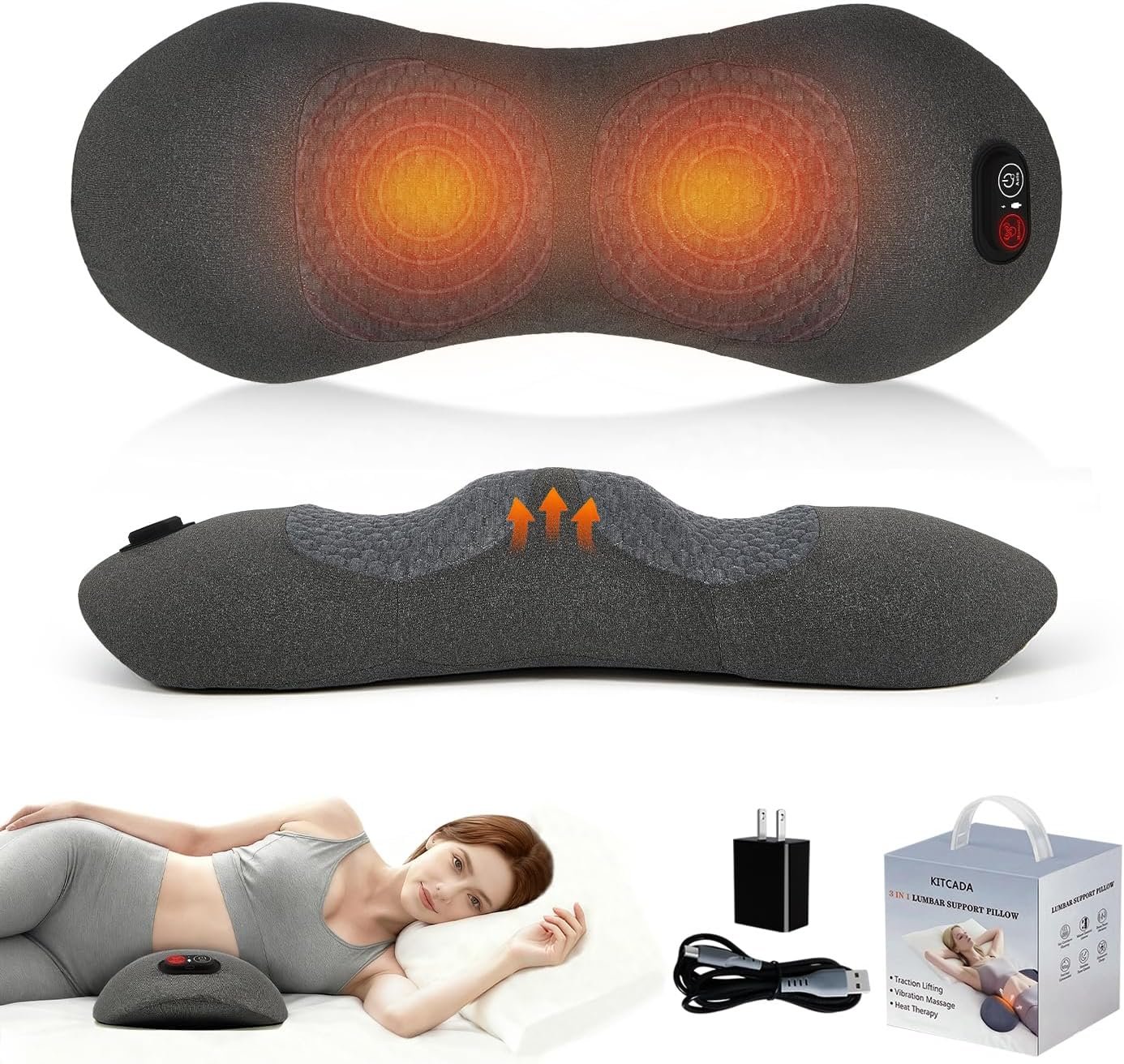
    A cordless back massager is one option designed around that type of routine. The Upgraded Cordless Triple Fusion Back Massager with Heat combines several comfort-oriented functions in a lumbar-support format. Rather than requiring the user to hold a handheld massager against the back, the device is designed as a support pillow that can be positioned behind the lower back while sitting or reclining.

    The product category commonly combines three functions: vibration massage, warmth, and an airbag-based stretching or lifting action. Similar triple-fusion lumbar designs use these functions independently or together, giving users different ways to configure a session. Current product documentation for this type of device describes heat, vibration, and dual-airbag movement as the three primary functions.

    The cordless design also changes how the device can fit into everyday life. Instead of being permanently connected to an outlet while it is being used, a rechargeable battery allows greater flexibility around a chair, sofa, bed, or other suitable location.

    It is important, however, to distinguish an at-home comfort device from medical treatment. A massager may provide temporary relaxation or comfort, but it should not be presented as a treatment for a medical condition, a replacement for professional care, or a guarantee of pain relief.

    This guide explains how a triple-function cordless back massager can be used, what its different features are intended to do, who may find this type of product useful, and what should be considered before incorporating one into a personal relaxation routine.

    Introduction

    The lower back plays an important role in supporting everyday movement. It is involved when sitting, standing, walking, bending, lifting, and changing position.

    Modern routines can also place prolonged demands on the area. Desk workers may spend several hours sitting, drivers may remain in one position during long journeys, and people working around the house may repeatedly bend or lift objects.

    An ergonomic lumbar support can help create a more comfortable seated position, while a massage device adds another element focused on relaxation.

    The Upgraded Cordless Triple Fusion Back Massager is designed around this combination.

    Instead of using a conventional rotating massage head, the device combines a lumbar-support structure with vibration, heat, and airbag movement. Product information for comparable versions describes a memory-foam-style support structure, adjustable heat, multiple vibration levels, and dual airbags that expand to create a stretching or lifting sensation.

    The cordless format can be useful for people who do not want a cable running from the chair to a wall outlet during every session.

    A rechargeable battery also makes it easier to move the device between locations, although battery capacity, charging time, and operating duration can vary by specific model.

    The key idea is therefore not simply “massage.” The product combines several forms of physical comfort into one portable lumbar-support device.

    Key Features

    Triple-Fusion Design

    The central concept behind this type of back massager is the combination of three functions:

    1. Vibration massage
    2. Heat
    3. Airbag-based stretching or support

    These functions can provide different sensations.

    Vibration can create rhythmic movement against the lower back.

    Heat adds localized warmth.

    The airbag mechanism can change the shape or pressure of the support pillow, creating a gentle lifting or stretching sensation.

    Comparable product documentation describes these three functions as working independently or together depending on the selected mode.

    The combination is useful from a practical perspective because different people may prefer different levels of stimulation.

    Someone might use warmth without vibration, for example, while another session could involve vibration and airbag movement.

    Cordless Operation

    The rechargeable design is one of the more practical characteristics of the device.

    A conventional electric massager may need to remain close to a wall outlet. A cordless model can be positioned more freely.

    This can be useful when moving between:

    • A home office chair
    • A living-room sofa
    • A recliner
    • A bedroom
    • Another suitable seated location

    Cordless operation also reduces the number of cables around the user’s seating area.

    The exact operating time depends on the battery capacity and the combination of functions being used. Comparable current models in this category use rechargeable batteries, with some specifications listing capacities around 2,000–3,000 mAh.

    Users should consult the specific product documentation for the supplied model rather than assuming that battery performance is identical across different versions.

    Vibration Massage

    Vibration is one of the three main functions of the triple-fusion design.

    Unlike a handheld percussion device, a lumbar vibration system does not require the user to continually hold and reposition the motor.

    The vibration mechanism is integrated into the support structure so that the user can sit or recline against it.

    Some comparable versions provide several vibration intensities or patterns. Product documentation for similar triple-fusion models describes low, medium, and high vibration settings, while another version provides pulse, alternating, and constant vibration modes.

    The appropriate setting is largely a matter of comfort.

    Higher intensity should not automatically be interpreted as more effective. If a setting feels uncomfortable, overly intense, or irritating, reducing the intensity or stopping the session is a sensible approach.

    Adjustable Heat

    Heat is another major component.

    Warmth can make a relaxation session feel more comfortable, particularly when the user prefers a warm sensation around the lower back.

    Comparable product specifications describe multiple temperature settings, with one current version providing 100°F, 108°F, and 118°F options and another model providing approximately 113°F and 122°F settings.

    Because the precise temperature range can differ among product versions, users should follow the settings and instructions supplied with their particular unit.

    Heat should also be approached carefully.

    A warmer setting is not necessarily better. Prolonged exposure to high heat can cause discomfort or skin injury, particularly for people who have reduced sensitivity.

    For that reason, users should follow the manufacturer’s instructions and avoid falling asleep while a heating function is operating unless the manufacturer specifically states that such use is appropriate.

    Dual Airbag System

    The airbag system distinguishes this product category from many conventional massage cushions.

    Instead of relying solely on vibration, internal airbags inflate and change the shape of the lumbar support.

    Comparable product documentation describes dual airbags that inflate on both sides of the lower back and provide a gentle stretching or lifting sensation.

    This can create a different experience from a simple vibrating cushion.

    The airbag action should not be interpreted as medical spinal decompression or as a treatment for a spinal condition. Product descriptions sometimes use terms such as “traction” or “decompression,” but those terms should not be confused with clinically supervised treatment.

    For everyday use, it is more appropriate to view the mechanism as a form of adjustable mechanical support and stretching sensation.

    Lumbar Support Structure

    The device is designed to sit behind the lower back rather than being held manually.

    Comparable versions use a shaped cushion or memory-foam-style structure intended to follow the natural curve of the lumbar region.

    The support component is important because comfort depends not only on the massage mechanism but also on how the body is positioned.

    A cushion that is too thick, too firm, or poorly positioned may feel uncomfortable even if the electronic functions are operating normally.

    Users should therefore adjust their seating position gradually and make sure the lumbar area is supported without forcing the back into an unnatural position.

    Remote or Convenient Controls

    Some versions of the upgraded triple-fusion design use a remote control or an accessible control interface.

    A remote can be particularly useful because the user does not need to repeatedly reach behind the lower back to change settings.

    Comparable product information describes wireless remote operation, including controls for modes, heat, vibration, and airbag functions.

    The exact controls should be checked against the supplied instructions because configurations can differ between models and product revisions.

    Auto Shut-Off

    Automatic shut-off is a useful feature for products that combine heat and powered mechanical functions.

    Current comparable triple-fusion documentation describes automatic session limits ranging from approximately 15 to 30 minutes depending on the model.

    A timer can help prevent a user from accidentally leaving the device operating indefinitely.

    It should not, however, be treated as a reason to ignore discomfort or sleep with the device operating.

    If the product’s manual specifies a particular session duration, that recommendation should take priority.

    How It Can Be Used

    During Desk Work

    People who work at a desk often remain seated for extended periods.

    A lumbar-support massager can be positioned behind the lower back during a break or relaxation period.

    The important point is to avoid treating the device as a substitute for movement.

    A more balanced desk routine can include:

    • Regularly standing up
    • Walking briefly
    • Adjusting the chair
    • Changing sitting position
    • Taking visual breaks
    • Performing appropriate mobility exercises

    The massager can then be used as a short comfort-oriented session rather than as a way to remain seated continuously.

    After a Long Commute

    Long periods in a car can leave the body feeling stiff simply because movement is restricted.

    Once the person has safely finished driving and is no longer operating the vehicle, a lumbar support device can be used while seated in an appropriate location.

    The cordless format can be convenient because the device does not necessarily need to remain near a household outlet.

    It is important to distinguish use after driving from use while driving. A massage device should not distract a driver or interfere with vehicle controls.

    While Relaxing on a Sofa

    The living room may be one of the simplest places to use the device.

    A person can position the massager behind the lower back while sitting comfortably and select an appropriate combination of vibration, warmth, and airbag movement.

    This can turn a short evening break into a structured relaxation session.

    During a Home Office Break

    Instead of using the device continuously throughout the workday, it can be incorporated into a planned break.

    For example:

    Work for a period → stand and move → sit comfortably → use the massager for a short session → return to normal activity.

    This approach keeps the device within a broader movement routine.

    Before Bedtime

    Some people prefer warmth and gentle vibration as part of an evening relaxation routine.

    If the device is used at night, users should follow the manufacturer’s instructions regarding session duration and heat.

    The safest approach is to remain awake and attentive while a heated electronic massager is operating unless the manufacturer specifically permits another form of use.

    Traveling

    A cordless device can potentially be easier to transport than a permanently wired massager.

    However, its size and weight still matter.

    Users who travel by air or other forms of transportation should consider the device’s dimensions, battery specifications, and applicable transportation requirements.

    A rechargeable lithium battery, if used by the particular model, may also be subject to transportation rules depending on how the device is carried.

    Who It May Be Suitable For

    Desk Workers

    People who spend significant time sitting may appreciate a lumbar support that also provides vibration and warmth.

    The device can become part of a break routine rather than a permanent replacement for an ergonomic chair.

    Frequent Travelers and Commuters

    A cordless format may be useful for people who regularly move between different locations.

    The device can be repositioned more easily than a wired cushion, provided there is enough space and the user can transport it comfortably.

    People Who Enjoy Heat-Based Relaxation

    Someone who simply prefers warmth during relaxation may use the heating function independently of the other features, depending on the product’s control options.

    People Looking for a Multi-Function Lumbar Cushion

    Instead of purchasing separate equipment for vibration, warmth, and lumbar support, a triple-function device combines these elements into one product.

    This can reduce the amount of equipment required around a chair or sofa.

    People Who Prefer Gentle Mechanical Sensations

    The airbag function offers a different sensation from conventional vibration.

    Some users may prefer that changing pressure or support, while others may prefer a simple vibrating cushion.

    The suitability is therefore personal and depends on comfort preferences.

    Important Things to Consider

    It Is a Comfort Device, Not a Medical Treatment

    This distinction is particularly important with back products.

    A massager can be used for relaxation and temporary comfort, but that does not mean it diagnoses, treats, or cures an underlying condition.

    Persistent back pain can have many possible causes.

    If discomfort is severe, persistent, associated with an injury, or accompanied by symptoms such as weakness, numbness, fever, loss of bladder or bowel control, or other concerning changes, professional medical evaluation may be appropriate.

    A consumer massage device should not delay necessary care.

    Be Careful With Heat

    Heat requires additional attention because skin can be injured without the user immediately noticing.

    People with reduced sensation may be particularly vulnerable because they may not recognize excessive warmth quickly.

    Users should follow the temperature settings and session-duration instructions supplied with the product.

    Avoid placing excessive layers between the heating surface and the body if doing so changes the manufacturer’s intended operating conditions.

    Consider Existing Medical Conditions

    People with certain medical conditions may need professional advice before using a device that combines heat, vibration, and mechanical movement.

    This can include situations involving recent surgery, significant spinal problems, acute injuries, circulation concerns, impaired sensation, pregnancy, implanted medical devices, or other individual circumstances.

    The correct advice depends on the person’s specific health situation.

    Avoid Injured or Inflamed Areas

    A massage device should not automatically be applied to a recently injured, swollen, inflamed, or painful area.

    Comparable product manuals specifically advise against use over swollen, inflamed, or injured areas.

    If an injury is suspected, determining the cause of the pain is more important than attempting to treat the sensation with a consumer massager.

    Understand the Airbag Function

    The airbag mechanism may create a noticeable stretching sensation.

    That does not mean users should tolerate forceful or painful movement.

    The purpose of a comfort device is not to push through pain.

    If the airbag action feels uncomfortable, users should reduce the setting or discontinue use.

    Do Not Assume “Decompression” Means Clinical Spinal Decompression

    Product categories in this market sometimes describe airbag movement as traction or decompression.

    These terms can sound medical, but a consumer lumbar cushion should not automatically be equated with clinically supervised spinal traction.

    The physical sensation may be relaxing for some users, but it should not be presented as a treatment for disc disorders, sciatica, spinal stenosis, or other medical diagnoses.

    Battery Management

    Cordless convenience depends on the rechargeable battery.

    Users should charge the device according to the supplied instructions and avoid using damaged charging equipment.

    Some comparable models are designed not to operate while charging, while others may have different charging behavior.

    The instructions supplied with the specific unit should therefore be followed.

    Cleaning

    Because the device contacts the body, regular cleaning can be useful.

    Comparable models use removable covers on some versions and recommend wiping the main device with a soft, damp cloth rather than immersing the electronics in water.

    Users should follow the actual cleaning instructions supplied with their model.

    Positioning Matters

    A lumbar massager works best when it is positioned appropriately.

    If it is too high, too low, or at an awkward angle, the support may not feel comfortable.

    Start with a neutral position and make small adjustments.

    The goal is comfortable support rather than forcing the lower back into a particular posture.

    Comparison of General Categories

    Manual Massage Tools

    Manual massage tools include massage balls, rollers, handheld tools, and similar products.

    They are generally simple and do not require batteries or electricity.

    The user controls the pressure and movement manually.

    The disadvantage is that reaching the lower back can be difficult without assistance.

    A cordless lumbar massager addresses that limitation by integrating the mechanism into the support cushion.

    Handheld Electric Massagers

    Handheld massagers provide greater flexibility because the user can target different parts of the body.

    They may be useful for shoulders, legs, arms, or other areas in addition to the back.

    However, they require the user to hold and reposition the device.

    A lumbar pillow is more hands-free once it has been positioned correctly.

    Massage Cushions

    Traditional massage cushions are designed to sit on a chair or sofa and provide powered massage.

    Some use rotating nodes, rollers, vibration, or combinations of these technologies.

    The triple-fusion design differs by combining vibration with heat and airbag movement.

    The best format depends on whether the user prioritizes portability, massage mechanics, heat, or lumbar support.

    Heated Lumbar Supports

    A basic heated lumbar cushion focuses primarily on warmth and posture support.

    It may be simpler than a triple-function massager.

    Someone who only wants gentle warmth may not need additional mechanical features.

    Percussion Massagers

    Percussion devices use rapid mechanical impacts and are commonly used on larger muscle groups.

    They provide a distinctly different sensation from vibration and airbag movement.

    They also require more active positioning by the user.

    A lumbar cushion is designed around passive positioning rather than actively moving a massage head across the body.

    Professional Massage

    Professional massage offers something consumer devices cannot fully replicate: a trained practitioner can observe the person’s movement, adjust pressure manually, and respond to feedback.

    A home massager is instead a convenience tool for personal use.

    It can fit into a relaxation routine but should not be considered equivalent to professional assessment or treatment.

    Creating a Sensible Home Routine

    A back massager can become less useful if it is treated as the only strategy for dealing with discomfort.

    A more balanced routine can include several elements.

    Move Regularly

    Long periods in one position can be uncomfortable.

    Stand up periodically, walk around, and change posture.

    Adjust the Workstation

    If you work at a desk, check the height of the chair, monitor, keyboard, and desk.

    The goal is to create a position that does not require constant awkward bending or twisting.

    Strengthen and Stretch Appropriately

    General physical activity and appropriately selected strengthening or mobility exercises can support overall physical function.

    If you have a medical condition or recurring pain, a qualified professional can help determine what types of exercise are appropriate.

    Use the Massager as One Component

    A short massage session can be one part of the routine.

    It should not become a reason to remain stationary for several additional hours.

    Pay Attention to Your Response

    Comfort should improve during or after a relaxation session.

    If the device causes increasing pain, numbness, unusual tingling, dizziness, skin irritation, or another concerning response, stop using it and consider seeking professional advice.

    Frequently Asked Questions

    What is a triple-fusion back massager?

    A triple-fusion back massager combines three types of functions in one lumbar-support device. The product category generally refers to vibration massage, heat, and airbag-based stretching or support. Comparable product documentation describes these three functions as the primary components.

    How does the airbag function work?

    Internal airbags inflate and change the shape or pressure of the lumbar cushion. Comparable models use two airbags positioned around the lower-back area to create a lifting or stretching sensation.

    Does the device provide heat?

    Yes. Heat is one of the primary functions of the triple-fusion design. Exact temperature settings depend on the specific product version. Comparable models provide multiple adjustable heat levels.

    Is the heat intended to treat back pain?

    The heating function should be viewed as a comfort and relaxation feature rather than a medical treatment.

    Persistent or significant back pain should be evaluated according to its cause rather than relying solely on a consumer heating device.

    Is the massager cordless?

    The product is designed as a cordless rechargeable back massager. Cordless operation allows it to be moved between suitable locations without remaining connected to a wall outlet during use.

    How long does the battery last?

    Battery duration depends on the specific model, selected functions, intensity, and battery condition. Comparable versions in this product category use rechargeable batteries with capacities around 2,000–3,000 mAh.

    Users should refer to the specifications supplied with the exact product for its expected operating time.

    Can the heat, vibration, and airbag functions be used separately?

    Many triple-fusion designs allow the individual functions to be selected independently or combined. Comparable product information describes both automatic combined modes and manual selection of individual functions.

    The exact control options should be confirmed in the supplied manual.

    Can it be used in an office?

    It can be used while sitting in an appropriate office chair if the chair and surrounding space provide enough support.

    The cordless design can make positioning easier.

    It should not interfere with normal work activities or cause the user to remain seated longer than they otherwise would.

    Can it be used on a sofa?

    A sofa can be suitable if the device fits securely behind the lower back and provides comfortable support.

    The user should make sure the cushion does not cause an awkward seating angle.

    Can it be used in bed?

    Some lumbar massagers are designed for use while lying down or reclining, depending on their shape and instructions.

    Users should follow the specific manufacturer’s guidance for the referenced model and avoid sleeping with an electronic heating device operating unless explicitly permitted.

    Is it suitable for sciatica?

    A consumer massager should not be presented as a treatment for sciatica.

    People with diagnosed sciatica or persistent radiating pain should discuss appropriate treatment and activity with a healthcare professional.

    Can it decompress the spine?

    The airbag mechanism may create a stretching or lifting sensation, and product descriptions may use terms such as traction or decompression.

    However, this should not be equated with medically supervised spinal decompression treatment.

    Can people with back injuries use it?

    Anyone with a recent injury should be cautious. Comparable manuals advise against using the device over injured or inflamed areas.

    A healthcare professional can provide individualized guidance when an injury is involved.

    Is it safe to use heat for a long time?

    Heat should be used according to the manufacturer’s recommended settings and session duration.

    More heat or longer sessions are not automatically better.

    Users with reduced heat sensitivity should be particularly careful.

    Does it automatically turn off?

    Many products in this category include an automatic shut-off function. Comparable models specify automatic cycles ranging from approximately 15 to 30 minutes.

    The exact timing should be verified in the instructions supplied with the specific unit.

    How should the device be cleaned?

    Cleaning procedures vary by model. Comparable products recommend removing or washing compatible covers where applicable and wiping the electronic body with a soft damp cloth rather than immersing the device.

    Always follow the supplied cleaning instructions.

    Can it replace an ergonomic office chair?

    No. A lumbar massager is not a substitute for an appropriately adjusted chair, proper workstation setup, regular movement, and healthy sitting habits.

    It is better considered an optional comfort accessory.

    Can it replace professional massage?

    No. A consumer massager cannot reproduce the assessment, manual adjustment, and individualized approach of a trained professional.

    It can instead provide a convenient at-home relaxation option.

    Conclusion

    The Upgraded Cordless Triple Fusion Back Massager with Heat is designed around a combination of lumbar support, vibration, warmth, and airbag-based movement.

    Its cordless format can make it easier to move around the home, while the triple-function design provides several different ways to structure a short relaxation session. Comparable products in this category combine adjustable heat, vibration intensity, dual-airbag movement, rechargeable batteries, and automatic session limits.

    The most useful way to approach this type of device is as part of a broader comfort routine.

    It can be positioned behind the lower back while sitting at an appropriate chair or sofa, used during a break from desk work, incorporated into an evening relaxation routine, or moved between suitable locations when the cordless battery allows.

    At the same time, the technology should not be confused with medical treatment. Terms such as traction or decompression can describe the physical action of an airbag mechanism, but they should not be interpreted as proof that a consumer device treats spinal disorders or other medical conditions.

    Heat also requires sensible use. The user should follow the recommended temperature and session limits, avoid using the device over injured or inflamed areas, and stop if the experience becomes uncomfortable.

    For people who simply want a multi-function lumbar comfort device, the combination of vibration, warmth, and adjustable airbag support provides a different approach from a basic heating pad, handheld massager, or conventional massage cushion.

    The right choice ultimately depends on individual preferences, available space, desired features, and any personal health considerations that may affect whether heat, vibration, or mechanical movement is appropriate.

    When used according to its instructions and within those boundaries, a cordless triple-fusion massager can serve as a convenient addition to a home relaxation routine without needing to become the only strategy for maintaining back comfort.

    You can check more details on Amazon here.

    Amazon Associates Disclosure: As an Amazon Associate, we earn from qualifying purchases.
  • Calendar Plus 3: A Practical Guide to the 24-Inch 2K Smart Digital Family Calendar

    Calendar Plus 3: A Practical Guide to the 24-Inch 2K Smart Digital Family Calendar

    Keeping a family organized can become complicated when schedules, appointments, school activities, household responsibilities, meals, shopping lists, and personal tasks are spread across different apps and devices. One person may use Google Calendar, another may rely on an iPhone calendar, while children may have their own routines and responsibilities. A shared physical calendar can help, but traditional paper calendars are limited when plans change frequently.

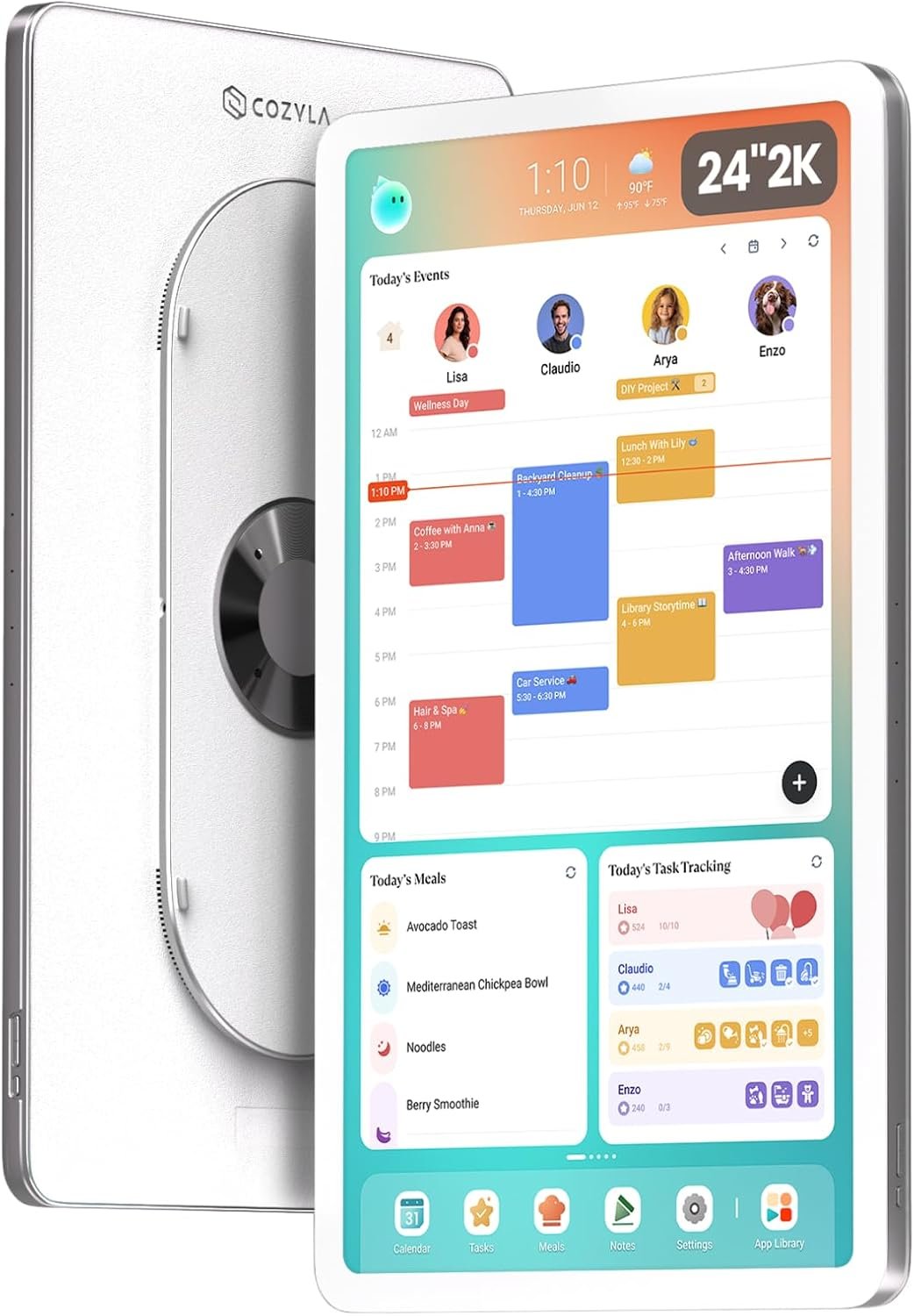
    The Cozyla Calendar Plus 3 24-inch 2K Smart Digital Calendar approaches this problem as a large shared touchscreen designed to act as a household information center. It combines a digital calendar with customizable widgets, task management, meal planning, applications available through Google Play, and other functions that can be arranged according to a family’s needs. Cozyla describes Calendar Plus 3 as a smart family command center, while its current product information identifies the 24-inch model as a QHD display.

    One of the most significant differences between a dedicated family calendar and a conventional smartphone calendar is visibility. A phone is usually associated with one person. A large wall-mounted display can instead provide a shared reference point that household members can see throughout the day.

    Calendar Plus 3 also takes a more flexible approach than a traditional dedicated calendar. Its Google Play Store access allows users to install compatible third-party applications, while the customizable dashboard can be arranged with widgets for calendars, tasks, weather, media, and other household information.

    This guide explains what the Calendar Plus 3 is designed to do, how its different features can fit into everyday household organization, what should be considered before installation, and how a large smart calendar compares with other approaches to family planning.

    Introduction

    A family calendar has one fundamental purpose: make upcoming activities easier to understand.

    The challenge is that modern household schedules are rarely limited to appointments. A typical week may involve work meetings, school events, sports practices, medical appointments, birthdays, errands, chores, meal preparation, grocery shopping, travel, and personal tasks.

    A calendar that only displays appointments may therefore leave out a large part of the information a family needs to coordinate everyday life.

    The Calendar Plus 3 expands the traditional calendar concept by combining scheduling with a customizable touchscreen dashboard. The current Cozyla product page describes support for shared calendars, customizable widgets, third-party applications through Google Play, and a range of household-oriented functions.

    The 24-inch 2K version is particularly focused on visibility. A larger screen can display more information at once than a smartphone or compact tablet, making it potentially suitable for a common area such as a kitchen, hallway, dining area, or family room.

    The device is also designed to connect with the Cozyla+ ecosystem. Current Cozyla documentation explains that Calendar Plus 3 setup involves connecting the device to Wi-Fi, installing or using the Cozyla+ app on a phone, activating the device, and completing available software updates.

    This connected approach means the calendar can be more than a static display. Changes made through supported services can be reflected across the household’s shared planning environment.

    At the same time, a smart calendar introduces considerations that do not exist with paper. Internet connectivity, software updates, account management, application compatibility, privacy, wall placement, and potential subscription-dependent features should all be considered before establishing it as the household’s primary planning system.

    Key Features

    24-Inch 2K QHD Display

    The defining physical feature of this version is its 24-inch display with 2K QHD resolution. Current Cozyla product information identifies the 24-inch Calendar Plus 3 as a QHD model, while third-party product information for the referenced Amazon listing identifies the configuration as a 24-inch 2K digital calendar.

    A large display changes the way a calendar can be used.

    Instead of opening a phone application and navigating between screens, household members can view a larger amount of information from a fixed location.

    This can be useful when several calendars are displayed together. Family members can potentially use separate colors or categories to distinguish schedules.

    The screen size also provides more room for additional dashboard elements such as tasks, weather, meals, or other widgets.

    Customizable Dashboard

    Calendar Plus 3 is not limited to one fixed calendar layout.

    Cozyla describes a customizable dashboard where users can drag, drop, and resize widgets to create a household-specific home screen.

    This makes it possible to prioritize information according to the household’s routine.

    For example, a family that spends most of its time coordinating appointments might place the shared calendar prominently on the main page.

    Another household might prefer a layout containing:

    • Weekly calendar
    • Chore list
    • Meal plan
    • Weather
    • Grocery list
    • To-do items
    • Music or another media application

    The ability to change the layout also means the device does not need to remain configured the same way forever.

    As family routines change, the dashboard can be reorganized.

    Google Play Store Access

    One of the major distinctions between Calendar Plus 3 and a conventional dedicated digital calendar is access to the Google Play Store.

    Cozyla describes the Calendar Plus platform as running on Android and providing access to applications through the pre-installed Google Play app store.

    The practical significance is flexibility.

    A dedicated calendar with a closed software environment can generally perform only the functions supplied by its manufacturer. A device with Google Play access can potentially be customized with compatible applications for productivity, entertainment, communication, education, weather, media, and other purposes.

    However, access to an app store does not mean every application will provide an ideal experience on a 24-inch wall display.

    Applications are developed for different screen sizes, orientations, input methods, and operating environments. Compatibility should therefore be checked before relying on a particular third-party application.

    Shared Calendar Synchronization

    Cozyla’s current software ecosystem supports shared calendar synchronization across multiple services. The Cozyla+ app describes integration with iCloud, Google, Outlook, and other calendars.

    This can be particularly useful for families where different members already use different calendar platforms.

    Instead of asking everyone to abandon their existing calendar service, a shared household display can act as a central visual layer.

    For example:

    • One parent may use Google Calendar.
    • Another may use an Apple calendar.
    • A child may have a school-related schedule.
    • The household may maintain shared events separately.

    The precise synchronization behavior depends on the supported service and current software configuration, so users should verify compatibility before depending on a particular integration.

    Color-Coded Family Scheduling

    Color coding can make a shared calendar easier to interpret.

    Cozyla’s current app information describes assigning a unique color to each family member so users can identify schedules visually.

    For a busy household, this can reduce the amount of time spent reading individual event details simply to determine who is involved.

    For example, a family could establish a simple system:

    Blue: Parent 1
    Green: Parent 2
    Purple: Child 1
    Orange: Child 2
    Gray: Shared household events

    The exact colors do not matter as much as consistency.

    Too many categories can eventually become difficult to interpret, so a simple color system may be easier to maintain.

    Chore and Task Management

    Calendar Plus devices are designed to combine calendar management with household tasks.

    The current Cozyla+ application provides task functionality including chores, recurring routines, to-do lists, and rewards.

    This is important because not every responsibility belongs on a calendar.

    “Doctor appointment at 3 PM” is an event.

    “Clean the garage” is a task.

    “Take out the trash every Tuesday” is a recurring responsibility.

    A system that separates these concepts can make household planning more structured.

    The current Cozyla software also describes a reward system in which children can earn stars for completing chores.

    Families can decide whether such a system fits their parenting approach. The feature is an organizational option rather than something every household needs to use.

    Meal Planning

    Meal planning is another component of the Cozyla ecosystem.

    The current Cozyla+ application includes weekly meal planning, recipes, grocery lists, and pantry tracking. It also states that users can explore more than 5,000 recipes and import recipes from a photograph or URL through Smart Import.

    For a household, this can connect several planning steps that are normally handled separately.

    A family can decide what meals are planned, organize the required groceries, and then refer to the meal schedule during the week.

    This can be especially useful in homes where multiple people contribute to food preparation or shopping.

    Weather Information

    Weather can be incorporated into the dashboard alongside the calendar.

    This may be useful when outdoor activities, school events, commuting, gardening, sports, or weekend plans are part of the household schedule.

    The customizable dashboard is designed to support widgets such as weather alongside calendar and other information.

    Weather information should still be treated as a convenience rather than a substitute for specialized weather information when conditions are important to safety.

    Google Play Applications

    The Google Play Store expands the device beyond calendar-specific functions.

    Potential categories include:

    • Streaming services
    • Music
    • Productivity applications
    • Educational tools
    • Web browsers
    • Weather applications
    • Household utilities
    • Communication tools
    • Entertainment

    The usefulness of any specific application depends on compatibility with the device and its software environment.

    Users should also consider whether installing too many applications would make the dashboard more complicated rather than more useful.

    Voice and AI Features

    Current Cozyla information also describes a Cozyla Agent designed to assist with planning and organization. The Cozyla+ app describes it as a built-in family helper that can assist with planning and everyday organizational tasks.

    The referenced Calendar Plus 3 product information also highlights a hands-free voice agent.

    These features can potentially make certain interactions faster, particularly when adding information without manually navigating through multiple screens.

    However, users should distinguish between convenience-oriented AI assistance and authoritative information. Any generated suggestion should still be reviewed before being treated as a final household plan.

    How It Can Be Used

    Creating a Central Family Calendar

    The most straightforward use is as a shared household calendar.

    A family can place the device somewhere visible and use it as the central reference point for the week’s activities.

    The main advantage of this arrangement is visibility.

    A phone calendar is often checked only when someone thinks to open it. A wall display can remain visible throughout the day.

    This can be especially useful for families where several people need to know what is happening without constantly messaging one another.

    Planning the Week

    A weekly planning session can become easier when the entire schedule is visible on one large screen.

    For example, a family could review the calendar every Sunday and identify:

    1. Appointments
    2. School activities
    3. Work commitments
    4. Sports and extracurricular activities
    5. Transportation requirements
    6. Household chores
    7. Meals
    8. Grocery requirements
    9. Special events

    Once the week is organized, the display can remain available as a shared reference.

    Managing Children’s Chores

    A household can use the task system to assign responsibilities to children.

    Tasks could include:

    • Making the bed
    • Putting away toys
    • Feeding a pet
    • Taking out trash
    • Cleaning a bedroom
    • Preparing school items
    • Helping with dishes

    Recurring tasks can be scheduled so that the family does not have to recreate the same list every week.

    The reward functionality described by Cozyla can provide another organizational layer for families that want to connect completed chores with a points or stars system.

    Organizing Meals

    A family can use the meal planner to decide what will be prepared each day.

    The process can then continue into grocery planning.

    For example:

    Sunday: Plan meals for Monday through Sunday.

    Sunday evening: Review ingredients and create a grocery list.

    Monday–Friday: Follow the planned meals and adjust when necessary.

    Weekend: Review what remains in the pantry and prepare the next plan.

    This creates a relationship between the calendar, meals, and shopping rather than treating each activity as an isolated task.

    Family Command Center

    The device can be configured as a broader family command center rather than simply a calendar.

    A possible dashboard could include:

    • Calendar
    • Weather
    • Chores
    • Meal plan
    • Grocery list
    • To-do list
    • Music
    • Photos

    Because the dashboard is customizable, different layouts can be created for different situations.

    For example, a morning dashboard could emphasize appointments and weather, while an evening layout could emphasize tomorrow’s schedule and household tasks.

    Education and Learning

    Because the platform provides Google Play access, compatible educational applications can potentially be used on the large touchscreen.

    A child might use the display for educational videos, learning applications, reading tools, or browser-based resources.

    The large screen can make certain educational activities more collaborative than using a personal phone.

    Parents should still consider appropriate screen time, application permissions, and age suitability.

    Entertainment

    The Google Play ecosystem also allows the device to function as more than a planning tool.

    Compatible streaming, music, and entertainment applications can potentially be installed.

    This can be useful in a kitchen or living area where family members want access to media while cooking or completing other activities.

    However, turning the calendar into a general entertainment screen may reduce its visibility as an organizational tool. Families may therefore benefit from deciding which functions deserve priority.

    Who It May Be Suitable For

    Busy Families

    Households with several schedules may benefit from a shared large-screen calendar.

    The ability to combine multiple calendars, tasks, meals, and other information provides more context than an appointment-only calendar.

    Families With Children

    Families with children may find the combination of schedules, chores, routines, and rewards useful for organizing everyday responsibilities. Cozyla’s current software explicitly includes chores, recurring routines, to-do lists, and rewards.

    Couples Managing Shared Responsibilities

    Couples can use the display to coordinate work schedules, appointments, errands, meals, and household tasks.

    Color-coded schedules can make it easier to distinguish individual commitments.

    Households Using Different Calendar Services

    The ability to bring supported calendars into a shared view can be particularly relevant when household members use different ecosystems.

    Current Cozyla information describes synchronization across Apple, Google, Outlook, and other calendars.

    People Who Prefer Visual Organization

    Some people naturally prefer having information displayed physically in front of them.

    A large touchscreen can make schedules more visible than a phone notification or a paper planner hidden inside a notebook.

    Smart-Home Users

    The broader Calendar Plus platform is designed to work with compatible smart-home ecosystems and Android applications. Cozyla’s product information describes smart-home integration and Google Play access.

    This can make the device relevant to households already using connected home technology.

    Important Things to Consider

    Wall Space and Placement

    A 24-inch display is substantially larger than a typical tablet.

    Before installation, users should consider where the screen will be placed and whether that location provides comfortable viewing.

    Common locations may include:

    • Kitchen
    • Dining area
    • Entryway
    • Hallway
    • Family room
    • Home office

    The location should also have convenient access to electrical power and Wi-Fi.

    Wall Mounting

    Cozyla describes Calendar Plus products as wall-oriented displays, and current product information lists a rotating wall mount for its 24-inch models.

    A wall-mounted device should be installed securely using the appropriate hardware and according to the manufacturer’s instructions.

    The wall structure should be considered before installation. Different surfaces may require different mounting methods.

    If there is uncertainty about the installation, professional assistance may be appropriate.

    Wi-Fi Dependence

    Calendar Plus 3 requires Wi-Fi during setup, according to Cozyla’s official setup documentation.

    Connected calendar synchronization and many online applications will also depend on network access.

    A household with unreliable Wi-Fi should understand that some connected features may not function normally when the device cannot reach the relevant services.

    Google Account and Google Play

    Using the Google Play Store generally involves a Google account and the normal account-management considerations associated with Android applications.

    Users should consider which account will be associated with the household device.

    A dedicated family account may be appropriate in some situations, while others may prefer to use an existing account.

    The choice should take privacy, app purchases, permissions, and household ownership into account.

    App Compatibility

    Google Play access is useful because it expands functionality, but it does not guarantee that every Android application will work perfectly on a large wall-mounted display.

    Applications can have different requirements for:

    • Screen orientation
    • Touch input
    • Display scaling
    • Account access
    • Hardware features
    • Android versions
    • Background operation

    Users should therefore verify compatibility before building an important workflow around a particular third-party application.

    Software Updates

    Connected devices evolve.

    Cozyla’s current setup documentation specifically instructs new Calendar Plus 3 owners to allow the device to complete available updates during setup.

    Updates can introduce improvements, modify interfaces, or change available functions.

    This is generally a normal part of using a smart device, but it also means that the experience can change over time.

    Membership-Dependent Features

    One important consideration is the distinction between device functionality and subscription-based services.

    Cozyla’s current Calendar Plus 3 product page states that 30 days of Super Membership are included and describes additional features such as Cozyla AI Voice Agent, Art Gallery, and Weekly Recap as part of the membership. It also states that users can continue with a monthly or annual plan or cancel.

    The same page separately identifies free features such as a customizable dashboard, third-party app support, and shared calendar functionality.

    Because service packages can change, buyers should check the current membership terms and determine which functions require payment before relying on them.

    Privacy

    A family calendar can contain considerable personal information.

    It may reveal:

    • Work schedules
    • School events
    • Medical appointments
    • Travel plans
    • Children’s activities
    • Household routines

    The current Cozyla+ Google Play listing states that the developer reports no data sharing with third parties, while also stating that the app may collect personal information, photos and videos, and other data. It also reports encryption in transit and the ability to request data deletion.

    These disclosures can change, and users should review the current privacy policy and app permissions before connecting personal calendars or photographs.

    Screen Visibility

    A large shared screen is useful partly because it is visible.

    That same characteristic can create privacy considerations.

    A household should think about whether visitors, neighbors, delivery workers, or other people could see information displayed on the screen.

    Sensitive event details may need to be kept private or simplified.

    Power

    The 24-inch Calendar Plus 3 is a powered household display rather than a small battery-first calendar.

    The installation location therefore needs suitable access to electricity.

    Cable routing should be planned carefully so that cords do not create unnecessary hazards.

    Comparison of General Categories

    Paper Family Calendars

    Paper calendars are simple, inexpensive to maintain, and independent of technology.

    They do not require Wi-Fi, software updates, accounts, or electricity.

    Their main limitation is flexibility. When plans change, users must manually erase and rewrite information.

    A paper calendar also cannot automatically synchronize with Google, Apple, or Outlook calendars.

    Smartphone Calendar Apps

    Smartphone calendars are highly portable and can provide notifications, reminders, and mobile access.

    Their main limitation as a family planning tool is shared visibility.

    A smartphone is generally a personal device. A 24-inch wall calendar, by contrast, is designed around the idea of shared household access.

    Tablets

    A tablet can perform many of the same functions as a smart calendar.

    It can run calendar applications, productivity software, streaming services, and other apps.

    Its advantages include portability and flexibility.

    The dedicated Calendar Plus 3 approach instead emphasizes a permanent, large-format family display.

    Smart Displays

    General-purpose smart displays can combine voice assistants, media, weather, smart-home controls, and other functions.

    Calendar Plus 3 takes a more family-organization-oriented approach while still providing access to third-party applications through Google Play.

    This creates a middle ground between a traditional calendar and a general-purpose Android smart display.

    Dedicated Digital Family Calendars

    A dedicated digital family calendar focuses specifically on shared household organization.

    The advantages can include persistent visibility, multiple calendars, family member color coding, tasks, meals, and a centralized planning location.

    The trade-off is that the device introduces hardware, power, Wi-Fi, software, and account-management requirements that do not exist with paper.

    Practical Organization Strategies

    Keep the Main Dashboard Simple

    A large screen can display a lot of information, but that does not mean every possible widget should be visible simultaneously.

    A practical dashboard might prioritize:

    1. Today’s schedule
    2. Upcoming appointments
    3. Family tasks
    4. Meal plan
    5. Weather

    Other information can be placed on additional pages.

    This prevents the main screen from becoming visually overwhelming.

    Use Consistent Colors

    If every family member has a dedicated color, keep that color consistent across calendar events and tasks where possible.

    Changing colors frequently can make the system harder to understand.

    Separate Events From Tasks

    Use calendar events for things that happen at specific times.

    Use tasks for responsibilities that simply need to be completed.

    This distinction can make the household system easier to maintain.

    Review the Calendar Weekly

    Even with synchronization, a weekly family review can be useful.

    The household can identify scheduling conflicts, forgotten tasks, upcoming events, and meal requirements.

    The goal is not to create another administrative task. It is to make the existing information easier to coordinate.

    Avoid Installing Unnecessary Apps

    Google Play access provides significant flexibility, but excessive customization can make the device harder to use.

    Install applications that support the household’s actual routines rather than adding software simply because it is available.

    Frequently Asked Questions

    What is Calendar Plus 3?

    Calendar Plus 3 is a smart digital family calendar and household display from Cozyla. The 24-inch version is designed around a large touchscreen, shared calendar management, customizable dashboards, and access to compatible Android applications through Google Play.

    What size is the Calendar Plus 3 discussed here?

    The product referenced is the 24-inch version with a 2K/QHD display.

    Does Calendar Plus 3 have Google Play?

    Yes. Cozyla describes Google Play Store access as part of the Calendar Plus platform, allowing users to download compatible third-party applications.

    Can it synchronize Google Calendar?

    Cozyla’s current software supports synchronization with Google calendars as part of its shared calendar functionality. The Cozyla+ app also identifies Google, Apple, Outlook, and other calendar integrations.

    Can Apple calendars be synchronized?

    The current Cozyla+ application describes shared calendar synchronization with iCloud as well as Google and Outlook.

    Users should verify the current integration process for the specific account configuration they intend to use.

    Can family members have different colors?

    Yes. Cozyla’s current application describes color coding by family member to make shared schedules easier to interpret.

    Can it be used for chores?

    Yes. The Cozyla+ ecosystem includes chores, recurring routines, to-do lists, and rewards.

    Can children use the chore system?

    The software includes family-oriented chore and reward functions, including stars and rewards.

    Parents can decide whether those features are appropriate for their household and how responsibilities should be assigned.

    Does it support meal planning?

    Yes. Cozyla’s current software includes meal planning, recipes, grocery lists, and pantry-related functions.

    Can additional applications be installed?

    The Calendar Plus platform provides access to the Google Play Store, allowing compatible third-party applications to be installed.

    Not every Android application should be assumed to provide the same experience on the large display.

    Does Calendar Plus 3 require Wi-Fi?

    Wi-Fi is part of the initial setup process, according to Cozyla’s official Calendar Plus 3 setup documentation.

    Online synchronization and many third-party applications also depend on network access.

    Does it require a phone?

    The Calendar Plus 3 setup process uses a phone to download or access the Cozyla+ application and complete parts of the setup.

    The device itself remains a touchscreen display that can be interacted with directly.

    Is there a subscription?

    Cozyla’s current product information states that Calendar Plus 3 includes 30 days of Super Membership and identifies additional membership features such as the AI Voice Agent, Art Gallery, and Weekly Recap. It also separately lists several free features.

    Because subscription offerings can change, users should check the current terms for the specific device before purchase.

    Can it be used as a normal Android device?

    Calendar Plus provides access to Google Play and third-party applications, but its software environment is designed around the Cozyla family-calendar experience.

    It is therefore better understood as a specialized smart household display with Android application capabilities rather than simply a large conventional tablet.

    Can it display weather?

    Weather widgets are among the types of dashboard elements Cozyla identifies for its customizable smart family display.

    Can it play music or other media?

    The customizable dashboard can include media-related widgets, and Google Play access provides a way to install compatible applications.

    Specific app availability and functionality can vary.

    Can it be used vertically or horizontally?

    Current Cozyla information for its 24-inch Calendar Plus models describes a rotating wall mount that supports changing orientation.

    Users should follow the mounting instructions supplied with their specific model.

    Is it suitable for a small apartment?

    It can be considered if there is an appropriate wall or display location with power and Wi-Fi access.

    However, a 24-inch display occupies considerably more visual and physical space than a phone or tablet, so placement should be considered carefully.

    Is it useful for large families?

    The larger screen and shared-calendar approach can provide more visible space for multiple schedules. However, larger families should still keep the dashboard organized so that information remains readable rather than overcrowded.

    Can it replace a paper calendar?

    It can replace the organizational role of a paper calendar for households that prefer digital planning, but the two approaches have different characteristics.

    A digital calendar provides synchronization and additional functions, while paper does not depend on electricity, Wi-Fi, software, or accounts.

    Is it a smart-home hub?

    The broader Calendar Plus platform includes smart-home functionality and compatibility with supported ecosystems, according to Cozyla’s product information.

    The exact devices and integrations supported can depend on current software compatibility.

    Conclusion

    The Calendar Plus 3 24-inch 2K Smart Digital Calendar is designed to turn household planning into a shared, visible digital experience.

    Its large QHD touchscreen provides considerably more display space than a smartphone, while the customizable dashboard allows families to arrange calendars, tasks, weather, meals, media, and other information according to their routines. Google Play access further expands the platform by allowing compatible third-party applications to be installed.

    The shared calendar functionality is particularly relevant for households where different people already use different calendar services. Current Cozyla software supports integrations involving Google, Apple, Outlook, and other calendars, while color coding can help distinguish individual schedules.

    The device can also extend beyond scheduling. Chore management, recurring tasks, rewards, meal planning, recipes, grocery lists, and other household functions are part of the broader Cozyla ecosystem.

    At the same time, the flexibility of a smart display comes with additional considerations. Users need to account for Wi-Fi, electrical power, wall placement, software updates, application compatibility, privacy, and account management. Some advanced features are also associated with Cozyla’s membership plans, so the current feature and subscription structure should be checked before establishing the device as a long-term household system.

    Ultimately, the value of a digital family calendar depends less on how many features are available and more on whether those features make everyday coordination easier. A household that benefits from having schedules, responsibilities, meals, and other information visible in one central location may find the large-format approach practical. A household that prefers a simple paper planner or individual smartphone calendars may have fewer reasons to use a dedicated display.

    The Calendar Plus 3 provides a flexible platform for households that want their calendar to become more than a list of appointments. It can function as a shared planning surface, task organizer, meal-planning station, and customizable Android-based family display, while still allowing each household to decide which functions actually belong in its daily routine.

    You can check more details on Amazon here.

    Amazon Associates Disclosure: As an Amazon Associate, we earn from qualifying purchases.
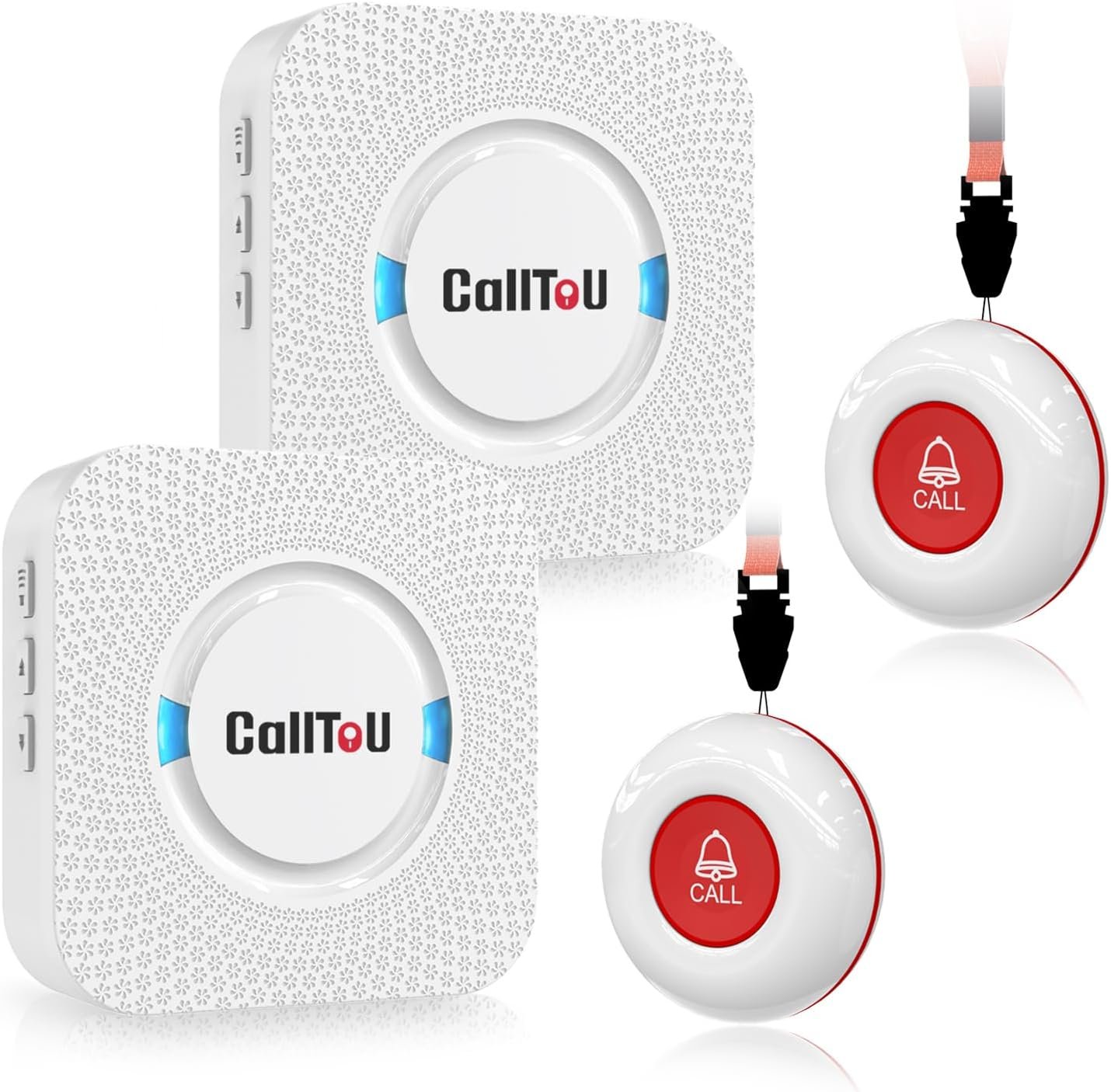
  • CallToU Caregiver Pager with Two Wireless Call Buttons: A Practical Guide to At-Home Care Communication

    CallToU Caregiver Pager with Two Wireless Call Buttons: A Practical Guide to At-Home Care Communication

    Communication becomes especially important when an older adult, person recovering at home, or individual who needs regular assistance cannot always reach a caregiver directly. In a typical household, simply calling someone’s name or walking from one room to another may not always be practical. A dedicated wireless call-button system can provide another way to request attention without requiring a phone or complicated technology.

    The CallToU Caregiver Pager with two wireless call buttons is designed for this type of situation. The system associated with model CC01 2-2 includes two wireless call buttons and two plug-in receivers. CallToU describes the system as a home caregiver alert solution, with the buttons designed to be carried or mounted and the receivers intended to notify a caregiver when a button is pressed.

    The product is built around a relatively straightforward concept: place or wear a call button where assistance may be needed, and position the receiver or receivers where the caregiver can hear the alert. The system does not require the person requesting help to operate a smartphone, open an application, or navigate a touchscreen.

    According to the manufacturer’s information, the system offers a wireless operating range of more than 500 feet in an open area, five adjustable volume levels, and 55 selectable ringtones. The call buttons use replaceable 23A 12V batteries, while the receivers plug into electrical outlets.

    Those specifications can be useful, but a caregiver alert system should always be viewed as a communication aid rather than a substitute for supervision, emergency services, or a professionally monitored medical alert system.

    This guide explains how the CallToU system works, practical ways it can be used around a home, important considerations when setting it up, and how it compares with broader categories of caregiver communication products.

    Introduction

    Providing care at home often involves a balance between helping someone when assistance is needed and allowing that person to maintain as much independence and privacy as practical.

    For example, an older adult may be comfortable spending time in a bedroom while a caregiver prepares food in the kitchen. Someone recovering from an injury may need occasional help getting up, while otherwise being able to remain independently in another room. A person with limited mobility may simply need a reliable way to signal that assistance is required.

    In these situations, communication does not necessarily need to be complicated.

    A wireless call button can serve as a simple bridge between the person requesting assistance and the caregiver. Instead of shouting across the house, walking to find someone, or using a smartphone, the person can press a physical button.

    The CallToU CC01 2-2 system uses two call buttons and two receivers. The manufacturer describes the call buttons as portable and suitable for wearing around the neck or positioning near a bed, while receivers can be placed in areas where a caregiver is likely to hear them.

    The two-button configuration can also provide flexibility. One button might remain beside a bed while another is placed in a bathroom or carried by the person.

    The two receivers can likewise be positioned in different parts of the home, potentially making it easier for a caregiver to receive an alert without carrying a receiver everywhere.

    The system’s simplicity is one of its defining characteristics. It focuses on local wireless communication rather than relying on a smartphone application or an internet connection.

    Key Features

    Two Wireless Call Buttons

    The package configuration includes two wireless call buttons and two receivers. The buttons act as transmitters: when one is pressed, the corresponding signal is sent to the receiver or receivers.

    Having two buttons can be useful when assistance may be needed in more than one location.

    For example, one button could be kept beside a bed while the second is placed in another frequently used area. Alternatively, two people could potentially have their own call button, depending on the household’s needs and setup.

    The manufacturer also describes the call buttons as portable. They can be carried in a pocket, worn using a neck strap, or secured to a suitable location with mounting accessories.

    This flexibility allows the system to be configured around the person rather than requiring the person to remain in one particular room.

    Two Wireless Receivers

    The two receiver units provide another layer of flexibility.

    CallToU describes the receivers as plug-in units. Once positioned in suitable outlets, they can provide an audible alert when a call button is activated.

    Having two receivers can be useful in a home where the caregiver moves between different rooms.

    For instance, one receiver might be located near the kitchen while another is placed near a home office. The goal is to reduce the possibility that a caregiver is too far away to hear a single receiver.

    The exact placement should depend on the home’s layout and the caregiver’s normal routine.

    500+ Foot Open-Area Range

    CallToU lists an operating range of more than 500 feet in an open area for this system.

    It is important to understand what “open area” means in practical terms.

    Wireless range inside a building can be considerably different from an unobstructed outdoor measurement. Walls, floors, building materials, appliances, electronic interference, and the physical arrangement of a house can all influence signal performance.

    A large home should therefore be tested after installation rather than assuming that an advertised open-area range will translate directly into the same distance indoors.

    A simple test is to place the call button in the locations where it will actually be used and confirm that each receiver responds reliably.

    Five Adjustable Volume Levels

    The receiver provides five volume settings. CallToU lists an adjustable range from 0 dB to 110 dB for the CC01 system.

    Different environments can require different alert levels.

    A quiet bedroom may not need the same volume as a busy kitchen or a room with television or other background noise.

    A caregiver can select a level that is audible without unnecessarily creating excessive noise throughout the home.

    The user should also consider the hearing abilities of the caregiver. If the person responsible for responding has hearing difficulties, an audible-only alert may not provide enough redundancy.

    55 Selectable Ringtones

    The receiver offers 55 ringtone options according to the manufacturer’s product information.

    The purpose of having multiple sounds is primarily customization.

    A household can choose a tone that is easily recognizable and distinguishable from ordinary household sounds.

    This can be particularly useful when a caregiver receives other alerts during the day. A dedicated sound can help identify that the signal came from the caregiver call system.

    The system can be configured by selecting a ringtone on the receiver and pairing the call button with it according to the manufacturer’s instructions.

    Portable Call Buttons

    The call buttons are designed to provide several placement options.

    CallToU describes options including carrying the button in a pocket, wearing it around the neck with the supplied lanyard, or securing it near a bed or other location with mounting accessories.

    This matters because the most useful location for a call button is usually the location where assistance may actually be needed.

    A button that is mounted across the room may be less practical than one that remains within easy reach.

    For someone with limited mobility, the button should be positioned according to their physical abilities rather than simply according to what looks convenient from a room-layout perspective.

    Water-Resistant Call Button Design

    CallToU describes the call button as water-resistant and suitable for environments where it may encounter splashes. The company’s product information indicates that the button can be installed in a bathroom and is designed to tolerate splashing, while also warning against prolonged immersion.

    This can be particularly relevant because bathrooms are one of the places where an individual may need assistance and where a conventional electronic device could be inconvenient.

    Water resistance should not be interpreted as permission to submerge the button or expose it to water beyond the manufacturer’s specified conditions.

    The receiver and charging or electrical components should also be treated according to their own instructions.

    Battery-Powered Call Buttons

    The call buttons use replaceable batteries. The manufacturer’s documentation identifies a 23A 12V battery for the call button and provides instructions for opening the back cover and replacing it.

    Battery-powered buttons make placement more flexible because the person is not tied to a wall outlet.

    However, battery maintenance becomes part of the caregiver’s routine.

    For a device intended to communicate an important request for assistance, it is sensible to check battery condition periodically rather than waiting for the button to stop working.

    Plug-In Receivers

    The receiver units are designed to plug into electrical outlets.

    This removes the need to maintain batteries in the receiver, but it means the receiver’s location is constrained by available outlets.

    When deciding where to place a receiver, caregivers should consider both hearing range and electrical safety.

    A receiver should be positioned where its alert can be heard while also avoiding situations where the power cord or device could become a tripping hazard.

    How It Can Be Used

    Beside the Bed

    A bedside call button is one of the most straightforward applications.

    An individual may need assistance with standing, retrieving an item, adjusting something in the room, or requesting help with another task.

    The button can be mounted near the bed or positioned within easy reach.

    The key consideration is accessibility. A button should not be placed somewhere that requires the person to stand up or stretch dangerously to reach it.

    In the Bathroom

    Bathrooms can present additional challenges because of water, slippery surfaces, and limited mobility.

    A call button positioned within reach can provide a simple way for someone to request assistance.

    The manufacturer specifically describes its call button as suitable for bathroom installation and capable of handling splashes.

    However, the button should still be installed in a location where it can be reached safely. It should not be positioned where a person would have to move into an unsafe position to press it.

    The device also should not be treated as an emergency response system capable of automatically contacting emergency services.

    In the Kitchen

    A call button can also be used in or near a kitchen.

    An older adult may spend time preparing food or sitting at a kitchen table while a caregiver works elsewhere.

    If the person needs assistance, pressing the button can provide a direct way to signal the caregiver.

    Because kitchens contain appliances, water, heat, and other hazards, placement should be selected carefully.

    Living Room

    A living room can be another suitable location for a permanently mounted button.

    If the person spends significant time in a chair or on a sofa, the call button can be positioned close enough to reach without unnecessary movement.

    The receiver can then be placed in the caregiver’s usual working area.

    Yard or Nearby Outdoor Areas

    The manufacturer describes an open-area range of more than 500 feet.

    Depending on the home’s layout and signal conditions, the system may also be useful when a caregiver and the person needing assistance are in different parts of a property.

    However, outdoor use should be tested rather than assumed. Buildings, walls, terrain, and other obstructions can affect wireless communication.

    Multiple Caregiver Locations

    The two-receiver configuration can be helpful when a caregiver spends time in more than one part of the home.

    For example, one receiver could remain in a kitchen and another in an upstairs area.

    The purpose is not to guarantee that an alert will be heard everywhere. Instead, it provides additional receiver locations that can be selected according to the household’s layout.

    Temporary Recovery at Home

    A wireless call button can also be useful during a temporary period when someone needs additional assistance.

    Examples may include recovery after an illness or procedure, temporary mobility limitations, or a period when a family member is helping someone who normally lives independently.

    Because the system is wireless and the buttons can be mounted or carried, the arrangement can be changed as needs change.

    Who It May Be Suitable For

    Older Adults Living at Home

    The system is designed around at-home caregiver communication and can be considered for older adults who need a convenient way to request attention.

    It may be particularly useful when the caregiver and older adult spend time in different rooms.

    The person using the button should still be capable of recognizing when they need assistance and physically pressing the button.

    Family Caregivers

    Family members who provide care at home may use a wireless pager as a simple communication method.

    The receiver can remain nearby while the caregiver completes household tasks.

    This can help reduce the need for constant verbal communication across rooms.

    People With Temporary Mobility Limitations

    Someone who temporarily has difficulty walking may benefit from having a call button within reach.

    This can be particularly relevant around a bed, chair, or other location where standing without assistance may be difficult.

    The suitability of any communication device depends on the individual’s abilities.

    People Who Prefer Simple Controls

    A physical call button is much simpler than a smartphone-based alert application.

    There is no need to unlock a phone, locate an app, or navigate a digital interface.

    For someone who is comfortable with a physical button but not with smartphone technology, this type of system may be easier to understand.

    Important Things to Consider

    It Is Not a Monitored Medical Alert System

    This is one of the most important distinctions.

    The CallToU caregiver pager is a local wireless communication system. Pressing the button alerts the paired receiver.

    It does not, by itself, mean that emergency services, a monitoring center, a doctor, or another remote professional will automatically be contacted.

    For someone at significant risk of a medical emergency, caregivers should consider whether a professionally monitored medical alert system or another emergency-response solution is more appropriate.

    The CallToU device can be viewed as an additional household communication tool rather than a replacement for emergency services.

    Wireless Range Depends on the Environment

    The manufacturer specifies more than 500 feet in an open area.

    Indoor range can be different.

    Concrete walls, multiple floors, metal structures, appliances, and other sources of interference may reduce effective range.

    Testing the system in the actual home is therefore important.

    The test should cover the locations where the button may realistically be used, including bedrooms, bathrooms, kitchens, living areas, and outdoor spaces if applicable.

    Battery Maintenance Matters

    A call button is only useful if its battery has sufficient power.

    Because the buttons use replaceable batteries, caregivers should establish a routine for checking and replacing them.

    It may also be sensible to keep compatible replacement batteries available.

    The manufacturer provides instructions for replacing the 23A 12V battery by opening the button housing and securing it again afterward.

    After changing a battery, the button should be tested to confirm that the receiver responds.

    Receiver Placement

    A receiver should be placed where the caregiver is likely to be.

    Installing both receivers in rooms that are rarely occupied may provide little practical benefit.

    Consider the caregiver’s daily routine. If the caregiver spends mornings in a home office and afternoons in the kitchen, the receiver locations can reflect that pattern.

    Volume Selection

    The five volume settings allow customization, but louder is not always better.

    An excessively loud alert may become unpleasant, especially if it is triggered frequently.

    The appropriate setting should be audible to the intended caregiver from normal working locations without unnecessarily disturbing the household.

    Button Accessibility

    A call button should be within comfortable reach.

    For someone lying in bed, placing the button on a nearby table may be less useful if they cannot reach the table.

    Likewise, a wall-mounted button should be positioned at an appropriate height.

    The system should be evaluated based on the actual person using it rather than simply following a generic placement.

    Water Resistance Has Limits

    CallToU’s product information describes the button as water-resistant and suitable for splashes, including bathroom use.

    That does not mean the button should be submerged.

    It is also important to distinguish the call button from the receiver. Water-resistant characteristics of one component should not automatically be assumed for every part of the system.

    False Presses and Accidental Alerts

    A call button placed too close to bedding, clothing, or other objects may potentially be pressed unintentionally.

    Caregivers should observe how the button is used and select a mounting location that balances accessibility with accidental activation.

    Privacy and Dignity

    A caregiver communication system can support independence when it allows a person to request help without shouting or repeatedly calling for someone.

    However, the technology should be introduced as a convenience rather than as a way to monitor every movement.

    The person using the button should understand what it does and, where appropriate, participate in deciding where it will be placed.

    Comparison of General Categories

    Wireless Caregiver Pagers

    Wireless caregiver pagers are designed primarily for communication within a home or other local environment.

    They usually consist of a transmitter or call button and one or more receivers.

    The CallToU system fits this category. Its focus is simplicity: press a physical button and alert a receiver.

    This can make the category useful for household communication where internet connectivity is unnecessary.

    Smartphone-Based Alert Systems

    Smartphone systems can provide notifications over the internet and may allow communication over longer distances.

    Their main advantage is remote access.

    However, they introduce additional dependencies such as smartphones, applications, accounts, internet connectivity, and battery charging.

    For someone who needs a simple physical button, those requirements may add unnecessary complexity.

    Smart-Home Alert Devices

    Smart-home ecosystems can sometimes be configured to send notifications when buttons or sensors are activated.

    These systems can integrate with other household automation features.

    The trade-off is greater configuration complexity. Users may need compatible hubs, applications, internet services, or additional devices.

    A dedicated caregiver pager generally focuses on one task rather than becoming part of a broader smart-home network.

    Professional Medical Alert Systems

    Professional medical alert services may include monitoring centers, emergency response, GPS functionality, fall detection, or other specialized features depending on the provider.

    These systems serve a different purpose from a basic local caregiver pager.

    Someone who spends substantial periods alone or faces a significant risk of an emergency may need to evaluate a professionally monitored solution rather than relying solely on a local wireless pager.

    Traditional Bells and Intercoms

    A traditional bell or intercom can also provide household communication.

    An intercom may allow two-way communication, while a simple bell may only provide a signal.

    The CallToU system focuses on a dedicated alert button and receiver arrangement, which can be useful when the main requirement is simply notifying a caregiver that assistance is needed.

    Practical Setup Suggestions

    A good setup begins with identifying where assistance is most likely to be requested.

    Start by considering the person’s normal daily routine.

    Where do they sleep?

    Where do they spend most of the day?

    Do they use a bathroom independently?

    Do they sit in a particular chair?

    Do they spend time outside?

    Once those locations are identified, decide where the call buttons should be placed.

    One button might remain beside the bed, while the second can be carried or positioned in another area.

    Then place the receivers according to the caregiver’s routine.

    After pairing the system, test every button from every important location.

    Do not perform the test only once.

    Repeat it from different rooms, different floors, and outdoor areas if those areas are part of the intended use.

    Testing can reveal signal limitations that are not obvious from the manufacturer’s open-area range specification.

    It is also useful to establish a simple household procedure:

    Press the button → caregiver receives the alert → caregiver responds → situation is checked → system is ready again.

    Everyone involved should understand what the alert means.

    If multiple people use the system, household members should also know which button belongs to which person or location if the setup has been customized that way.

    Maintenance and Everyday Care

    Wireless caregiver equipment is relatively simple, but routine checks are worthwhile.

    The call buttons should be inspected periodically for damage.

    Battery condition should be monitored and batteries replaced when necessary.

    Receivers should remain connected to their power sources and positioned securely.

    The buttons and receivers should be cleaned according to the manufacturer’s instructions.

    CallToU’s documentation recommends cleaning the relevant components with appropriate care and avoiding harsh chemicals or abrasive cleaning methods.

    If a button has been used in a bathroom or another area exposed to moisture, it should be checked to ensure it remains in good condition.

    Most importantly, the entire system should be tested periodically.

    A device that worked correctly several months ago should not simply be assumed to remain functional indefinitely.

    Frequently Asked Questions

    What is the CallToU caregiver pager?

    It is a wireless home alert system designed to allow a person to press a call button and send an alert to one or more caregiver receivers. The referenced configuration contains two call buttons and two receivers.

    How many call buttons are included?

    The referenced CC01 2-2 configuration includes two wireless call buttons.

    How many receivers are included?

    The same configuration includes two plug-in receivers.

    What is the wireless range?

    CallToU specifies an operating range of more than 500 feet in an open area. Actual indoor performance can vary depending on walls, floors, building materials, and interference.

    Does the call button require batteries?

    Yes. The manufacturer’s documentation identifies a replaceable 23A 12V battery for the call button.

    How does the caregiver receive an alert?

    When the call button is pressed, the paired receiver produces the selected alert sound and uses its indicator light to signal that a call has been received.

    Can the call button be worn around the neck?

    Yes. CallToU describes a neck lanyard option that allows the button to be worn as a pendant.

    Can the button be mounted near a bed?

    Yes. The manufacturer describes mounting options using a bracket or adhesive and specifically identifies bedside placement as one possible use.

    Can the call button be used in a bathroom?

    CallToU describes the button as water-resistant and suitable for splash exposure, including bathroom placement. It should not be treated as a device intended for prolonged immersion.

    How many ringtone choices are available?

    The receiver provides 55 selectable ringtones according to CallToU’s product information.

    How loud can the receiver be?

    CallToU lists five adjustable volume levels ranging from 0 dB to 110 dB for this system.

    Does it require Wi-Fi?

    The standard CC01 2-2 caregiver pager operates as a local wireless system and does not require a smartphone application or home Wi-Fi connection for its basic call-and-receiver function. The manufacturer describes the system as a plug-and-play wireless caregiver pager.

    Can it automatically call emergency services?

    No. This type of local caregiver pager is designed to alert its paired receiver. It should not be confused with a professionally monitored medical alert service that can contact an emergency response center.

    Can it replace a medical alert system?

    Not necessarily. The appropriate system depends on the individual’s needs and level of risk. A local caregiver pager is primarily intended for communication with someone nearby in the same home or property.

    Can two receivers be useful in a large house?

    They can provide additional listening locations, which may be useful when a caregiver moves between rooms. However, the actual wireless range should be tested in the specific home because indoor conditions can affect signal performance.

    Is the system suitable for someone who lives completely alone?

    A local caregiver pager may have limited usefulness for someone who has no caregiver within the receiver’s range. A person living alone may need a different type of emergency communication system, particularly if there is a significant risk of falling or another medical emergency.

    Does the person need a smartphone to use the call button?

    No. The basic call function is based on pressing the physical wireless button and activating the paired receiver.

    Is it useful for temporary home care?

    It can be considered for temporary situations where someone needs a convenient way to request assistance from a nearby caregiver, provided the system’s limitations are understood.

    Conclusion

    The CallToU Caregiver Pager with two wireless call buttons is built around a straightforward approach to at-home communication: provide the person needing assistance with an accessible physical button and give the caregiver one or more receivers that can signal when help is requested.

    The referenced CC01 2-2 configuration includes two call buttons and two receivers, with the manufacturer specifying more than 500 feet of open-area wireless range, five adjustable volume levels, 55 ringtone choices, portable call buttons, and water-resistant button construction.

    The system can be configured for several everyday situations. A button can be positioned beside a bed, carried around the home, worn as a pendant, or placed in another area where assistance may be needed. Two receivers provide flexibility for caregivers who move between different parts of the house.

    Its simplicity is also worth considering. There is no requirement for the person requesting help to operate a smartphone or navigate an application. At the same time, the system remains a local communication tool rather than a professionally monitored emergency response service.

    For households considering a caregiver pager, practical setup is just as important as the specifications. The buttons should remain within comfortable reach, receivers should be placed where the caregiver can hear them, batteries should be checked regularly, and the wireless signal should be tested throughout the areas where the system will be used.

    Most importantly, caregivers should match the communication system to the individual’s actual needs. Someone who simply needs an easy way to get a family member’s attention may have very different requirements from someone who is at significant risk of a medical emergency or spends long periods alone.

    Used within those boundaries, a wireless caregiver pager can provide a simple communication channel between rooms while supporting a person’s ability to request assistance without constantly calling or shouting for someone.

    You can check more details on Amazon here.

    Amazon Associates Disclosure: As an Amazon Associate, we earn from qualifying purchases.
  • Aquasonic Black Series Ultra Whitening Toothbrush: A Practical Guide to Sonic Oral Care

    Aquasonic Black Series Ultra Whitening Toothbrush: A Practical Guide to Sonic Oral Care

    Maintaining a consistent oral-care routine is less about finding complicated technology and more about making effective brushing easier to perform every day. An electric toothbrush can support that routine by providing powered brush movement, timed brushing sessions, and different operating modes that can be adapted to individual preferences.

    The Aquasonic Black Series Ultra Whitening Toothbrush combines those features in a rechargeable sonic toothbrush designed for everyday oral hygiene. The model includes a 40,000-vibration-per-minute motor, four brushing modes, a built-in timer, wireless charging, eight replacement brush heads, and a travel case. AquaSonic also identifies the Black Series as an ADA-accepted powered toothbrush.

    The American Dental Association currently lists the AquaSonic Toothbrush, including the Black Series, among its accepted powered toothbrushes. The ADA states that its acceptance is based on evidence that the product is safe and has demonstrated efficacy in removing plaque and helping prevent and reduce gingivitis when used as directed.

    That distinction is important. An ADA Seal of Acceptance is not a statement that one toothbrush is universally preferable to every other option. It indicates that the product has undergone the ADA’s evaluation process for specific safety and effectiveness claims. The ADA explains that powered and manual toothbrushes can both be effective when used appropriately.

    This guide explores the Aquasonic Black Series from a practical and educational perspective, including its main features, possible uses, brushing modes, maintenance considerations, travel benefits, and how it compares with broader categories of toothbrushes.

    Introduction

    A toothbrush has a relatively simple job: help remove plaque and food debris from the teeth and along the gumline. The challenge is consistency.

    The American Dental Association recommends brushing twice a day for two minutes with a soft-bristled toothbrush. It also recommends replacing toothbrushes or brush heads approximately every three to four months, or sooner if the bristles become visibly worn.

    An electric toothbrush can make this routine more structured by supplying powered movement rather than requiring the user to generate all of the brushing motion manually.

    The Aquasonic Black Series uses sonic movement and is specified by the manufacturer at 40,000 vibrations per minute. It provides four operating modes—Clean, Soft, Whiten, and Massage—and incorporates a smart timer intended to help users maintain an appropriate brushing duration.

    The package also includes eight brush heads and a hard travel case. AquaSonic states that its included brush heads are designed for approximately three to four months of use each, although actual replacement timing should depend on bristle condition and normal dental-care guidance.

    Another practical feature is wireless charging. Rather than connecting a charging cable directly to the toothbrush handle, the handle sits on a compatible charging base.

    For people who travel frequently, the included case provides a dedicated way to transport the handle and brush heads while keeping the toothbrush separated from other belongings.

    Key Features

    40,000 Vibrations Per Minute

    One of the most prominent specifications of the Black Series is its 40,000 VPM sonic motor.

    VPM stands for vibrations per minute. It describes the frequency of the powered movement generated by the toothbrush.

    A high vibration count should not be interpreted by itself as proof that a toothbrush will clean every user’s teeth better. Brushing technique, duration, brush-head condition, pressure, toothpaste, consistency, and individual oral-health needs all matter.

    The more useful way to understand the 40,000 VPM specification is that the Black Series uses high-frequency powered movement as its cleaning mechanism rather than relying on the user’s hand to create the brushing motion.

    Four Brushing Modes

    The Black Series provides four operating modes:

    • Clean
    • Soft
    • Whiten
    • Massage

    AquaSonic describes these modes as being intended for different aspects of an oral-care routine.

    The Clean mode can serve as the general-purpose setting for routine brushing.

    The Soft mode can provide a gentler alternative for users who prefer lower-intensity brushing.

    The Whiten mode is designed around polishing and surface-stain care rather than replacing professional whitening procedures.

    The Massage mode is intended to provide a different brushing experience focused on the gum area.

    Having several modes allows users to adjust their routine rather than using exactly the same setting every time.

    However, users with sensitive teeth, gum problems, orthodontic appliances, dental restorations, or other specific oral-health concerns should follow advice from their dentist or dental hygienist when selecting a brushing technique and intensity.

    Smart Timer

    Timing is one of the simplest but most useful features on an electric toothbrush.

    The ADA recommends brushing for two minutes twice a day.

    The Black Series includes a smart timer designed to guide the brushing session. AquaSonic’s current product information describes smart vibration timers as part of the Black Series design.

    A timer can help address a common problem: stopping too early.

    Without a timer, it is easy to underestimate how long two minutes actually feels. A dedicated brushing timer provides a consistent reference point and can encourage users to divide attention between different areas of the mouth.

    The timer should be viewed as a guide rather than a guarantee of proper brushing. Spending two minutes brushing incorrectly is still different from using appropriate technique and coverage.

    ADA Acceptance

    The ADA Seal of Acceptance is an important distinction for this product.

    The American Dental Association’s current product listing identifies the AquaSonic Toothbrush as an accepted powered toothbrush. Its Seal Statement says the Council on Scientific Affairs found the product safe and found evidence of efficacy in removing plaque and helping prevent and reduce gingivitis when used as directed.

    The ADA explains that products receiving its Seal are evaluated against specific scientific requirements, and manufacturers must provide evidence supporting applicable safety and efficacy claims.

    It is useful to understand what this means—and what it does not mean.

    The Seal does not mean that the toothbrush replaces professional dental care.

    It does not mean that users will receive identical results.

    It does not mean that the product is appropriate for every individual oral-health situation.

    Instead, it provides third-party information about specific safety and effectiveness claims evaluated through the ADA program.

    Eight Brush Heads

    The Black Series package includes eight replacement brush heads. AquaSonic states that each head is intended to last approximately three to four months under normal use.

    This can simplify brush-head replacement because users have several replacements available without needing to purchase another handle.

    The ADA recommends replacing toothbrushes every three to four months or earlier if the bristles become visibly matted or frayed.

    The condition of the bristles is therefore more important than simply following a calendar.

    A user who brushes aggressively may wear bristles more quickly than someone using lighter pressure. Likewise, a brush head may need replacement sooner if it becomes damaged or misshapen.

    Wireless Charging

    The Black Series uses a wireless charging system.

    AquaSonic identifies ultra-fast wireless charging as one of the product’s features.

    Wireless charging can be convenient for a bathroom environment because the toothbrush can be placed on its charging base rather than requiring a charging connector to be inserted into the handle.

    The charging base can also provide a dedicated location for storing the toothbrush between uses.

    As with any electrical device used around water, the charging equipment should be placed and handled according to the manufacturer’s instructions.

    Travel Case

    The included travel case is designed to make transportation more convenient.

    AquaSonic describes the case as a custom hard-shell travel case with room for the toothbrush and two brush heads.

    This can be useful for vacations, business travel, gym visits, or other situations where keeping oral-care equipment organized matters.

    A case can also help prevent the brush head from coming into direct contact with other objects inside luggage.

    Before storing the toothbrush for travel, however, it is sensible to rinse the brush head and allow it to dry appropriately rather than immediately enclosing a wet brush in a closed case for an extended period.

    Water-Resistant Design

    AquaSonic identifies the Black Series as having an IPX7-rated waterproof design.

    An IP rating describes resistance to water under specified testing conditions. It should not be interpreted as permission to use an electronic toothbrush in every possible water environment.

    Users should still follow the manufacturer’s instructions concerning cleaning, charging, and exposure to water.

    In particular, the charging equipment should be kept in an appropriate location and handled according to its instructions.

    How It Can Be Used

    Establishing a Consistent Morning Routine

    One straightforward use is incorporating the Black Series into a twice-daily routine.

    A typical morning routine might include:

    1. Applying toothpaste to the brush head.
    2. Starting the selected brushing mode.
    3. Moving systematically around the mouth.
    4. Allowing the timer to guide the session.
    5. Rinsing the mouth and brush head as appropriate.
    6. Returning the toothbrush to its designated storage or charging location.

    The important part is consistency rather than making the routine unnecessarily complicated.

    Evening Oral Care

    The evening brushing session is another opportunity to use the timer and powered brushing system.

    Some people find that a dedicated electric toothbrush makes it easier to establish a predictable bedtime routine because the device provides a consistent start and end point.

    If flossing or another interdental-cleaning method is part of an individual’s dental-care routine, that can be incorporated separately according to dental-professional guidance.

    Using the Soft Mode

    The Soft setting may be useful for users who prefer a gentler brushing sensation.

    It is important not to interpret “soft” as a treatment for a specific dental condition. People experiencing persistent sensitivity, bleeding gums, pain, recession, or other concerns should discuss those symptoms with a dental professional rather than simply changing toothbrush settings and assuming the issue will resolve.

    Using the Whiten Mode

    The Whiten mode is designed around polishing and surface-stain care.

    Surface discoloration can occur from foods and drinks such as coffee, tea, or other staining substances. A toothbrush can help maintain cleanliness and may help remove some surface deposits.

    However, brushing is not equivalent to professional or chemical tooth whitening.

    The color of teeth can be influenced by factors that brushing alone cannot change, including intrinsic tooth color and certain forms of discoloration.

    For that reason, a whitening-oriented brushing mode should be understood as part of routine oral hygiene rather than a substitute for professional whitening treatment.

    Using the Massage Mode

    The Massage setting provides another brushing option intended for the gum area.

    Gums should be treated gently. Applying excessive pressure does not necessarily improve cleaning and may contribute to irritation or damage.

    Users should follow the manufacturer’s instructions and dental-professional guidance regarding appropriate pressure and technique.

    Travel

    The travel case makes the Black Series suitable for maintaining a similar brushing setup away from home.

    Travel can disrupt oral-care routines because people sometimes leave behind chargers, brush heads, or other accessories.

    Keeping the toothbrush, replacement heads, and case together can make the routine more portable.

    For longer trips, users should also consider the availability of the appropriate power source and charging equipment at their destination.

    Who It May Be Suitable For

    Adults Seeking a Powered Alternative

    The Black Series is intended as an adult electric toothbrush and can be considered by people who want an alternative to manual brushing.

    The ADA notes that both manual and powered toothbrushes can be effective. It also notes that powered toothbrushes may be particularly useful for some people with dexterity limitations.

    That does not mean every person with limited dexterity should automatically choose this specific model. Individual comfort and dental needs still matter.

    People Who Prefer Timed Brushing

    Someone who regularly loses track of brushing time may appreciate an integrated timer.

    A timer can make the recommended two-minute routine more structured without requiring the user to watch a clock.

    Frequent Travelers

    The combination of rechargeable operation, multiple replacement brush heads, and a travel case can be practical for people who frequently travel.

    Instead of assembling a separate travel toothbrush setup, users can transport the same powered toothbrush system.

    Users Interested in Multiple Modes

    Some people prefer having different operating options rather than a single fixed setting.

    The four modes provide a way to choose between general cleaning, softer brushing, whitening-oriented polishing, and massage-oriented use.

    People Looking for an ADA-Accepted Powered Toothbrush

    The ADA currently lists AquaSonic Toothbrush among accepted powered toothbrushes.

    For consumers who specifically want an electric toothbrush with an ADA Seal of Acceptance, this is a relevant characteristic to consider.

    Important Things to Consider

    Technique Still Matters

    An electric motor does not automatically guarantee thorough brushing.

    Users still need to position the brush head appropriately and move it systematically around the mouth.

    The ADA recommends brushing twice daily for two minutes with a soft-bristled toothbrush.

    An effective routine therefore involves both the device and the way it is used.

    Avoid Excessive Pressure

    More pressure is not necessarily better.

    Aggressive brushing can be uncomfortable and may contribute to gum irritation or tooth wear in some circumstances.

    A powered toothbrush should generally be allowed to perform its intended movement without the user forcing it aggressively against the teeth.

    Anyone concerned about brushing pressure, gum recession, sensitivity, or bleeding should ask a dentist or dental hygienist for individualized guidance.

    Brush Head Replacement

    Having eight brush heads does not mean every head should automatically be used for exactly the same number of months.

    AquaSonic describes its included heads as lasting approximately three to four months each, while the ADA recommends replacement every three to four months or earlier if bristles become worn.

    Visual inspection is therefore useful.

    If the bristles become frayed, flattened, or visibly damaged, replacing the head may be appropriate even if the expected time period has not elapsed.

    Dental Appliances and Special Circumstances

    People with braces, implants, crowns, veneers, gum disease, recent dental procedures, or other specific oral-health situations may have different brushing requirements.

    The ADA notes that powered toothbrushes can be useful for people with dental appliances such as braces, but individual recommendations can vary.

    A dentist or orthodontist can provide instructions appropriate to the specific appliance or condition.

    Whitening Expectations

    The term “whitening” can create unrealistic expectations if it is interpreted as professional tooth bleaching.

    The Black Series includes a Whiten mode, but a toothbrush primarily supports mechanical cleaning and surface-stain removal.

    If discoloration is persistent or a person wants a significant change in tooth shade, professional dental advice may be more appropriate than simply increasing brushing intensity.

    Charging and Storage

    Wireless charging adds convenience, but the toothbrush still needs to be stored in a sensible location.

    The charging base should not be treated like a waterproof bathroom accessory unless the manufacturer specifically states that the base itself has equivalent water resistance.

    Keeping electrical components away from direct splashes can help protect the equipment and reduce avoidable risks.

    Personal Oral-Health Needs

    A product that works well for general daily hygiene may not address a specific dental problem.

    Persistent bleeding, swelling, pain, sensitivity, loose teeth, sores, or other unusual symptoms should not simply be treated by changing toothbrush settings.

    Those situations warrant professional dental evaluation.

    Comparing General Toothbrush Categories

    Manual Toothbrushes

    Manual toothbrushes remain a straightforward option for everyday oral hygiene.

    They do not require charging, batteries, electronic components, or replacement charging equipment.

    They can also be inexpensive and easy to travel with.

    The trade-off is that the user must provide the brushing movement and manage brushing time without the assistance of a built-in motor or timer.

    The ADA recognizes manual toothbrushes as an effective option when used properly.

    Basic Electric Toothbrushes

    Basic rechargeable or battery-powered toothbrushes add powered movement without necessarily offering multiple modes or extensive accessories.

    They can be a reasonable middle ground for people who want powered brushing but do not need additional features.

    Compared with a basic electric toothbrush, the Black Series adds four modes, a smart timer, wireless charging, multiple brush heads, and a travel case.

    Sonic Toothbrushes

    Sonic toothbrushes use high-frequency powered movement.

    The Black Series falls within this category and specifies 40,000 vibrations per minute.

    Different sonic toothbrushes can vary considerably in motor specifications, head design, timing functions, battery systems, and modes.

    The number of vibrations alone should not be treated as a complete measure of oral-care effectiveness.

    Premium Smart Toothbrushes

    Some higher-end electric toothbrushes add smartphone applications, pressure sensors, brushing maps, Bluetooth connectivity, and other feedback features.

    Those technologies may appeal to people who want detailed tracking.

    The Black Series takes a more straightforward approach, concentrating on physical controls, multiple brushing modes, timing, charging, and included accessories rather than requiring an extensive connected-app ecosystem for everyday brushing.

    Travel Electric Toothbrushes

    Compact travel-oriented toothbrushes often emphasize portability and smaller charging systems.

    The Black Series is somewhat different because it is a full-size rechargeable toothbrush supplied with a dedicated travel case.

    For frequent travelers, the included case may be useful, while users who prioritize the smallest possible luggage footprint may prefer a purpose-built compact travel model.

    Practical Maintenance Tips

    Taking care of the toothbrush can help keep the daily routine consistent.

    After brushing, rinse the brush head thoroughly according to the manufacturer’s instructions.

    Allowing the brush head to dry between uses is also useful. A permanently enclosed, wet brush head is less desirable than allowing appropriate air circulation.

    Keep replacement brush heads stored in a clean, dry location.

    Inspect the bristles periodically rather than waiting for them to become severely damaged.

    The handle and charging equipment should be cleaned according to the manufacturer’s instructions.

    When traveling, the case can help organize the toothbrush and replacement heads, but it is sensible to avoid packing a visibly wet brush immediately before closing the case for an extended period.

    Frequently Asked Questions

    Is the Aquasonic Black Series ADA accepted?

    Yes. The American Dental Association currently lists the AquaSonic Toothbrush, including the Black Series among its accepted powered toothbrushes. The ADA’s Seal Statement says the product has demonstrated safety and efficacy in removing plaque and helping prevent and reduce gingivitis when used as directed.

    What does ADA acceptance actually mean?

    The ADA Seal of Acceptance indicates that the product has been evaluated against the program’s scientific requirements for applicable safety and effectiveness claims. It does not mean that the toothbrush is universally superior to all other toothbrushes.

    How many vibrations per minute does the Black Series have?

    The Aquasonic Black Series is specified at 40,000 vibrations per minute.

    How many brushing modes are included?

    The Black Series provides four modes: Clean, Soft, Whiten, and Massage.

    Does it have a timer?

    Yes. The Black Series includes a smart vibration timer designed to help guide brushing sessions.

    The ADA recommends brushing for two minutes twice a day.

    Does the toothbrush use wireless charging?

    Yes. AquaSonic lists wireless charging as one of the Black Series features.

    How many brush heads are included?

    The Black Series package includes eight brush heads. AquaSonic states that each head is designed to last approximately three to four months.

    Actual replacement timing should also take bristle condition into account, consistent with ADA guidance.

    Does it include a travel case?

    Yes. The package includes a custom hard-shell travel case designed to hold the toothbrush and two brush heads.

    Is the Black Series waterproof?

    AquaSonic describes the toothbrush handle as having an IPX7-rated waterproof design.

    Users should still follow the manufacturer’s instructions concerning water exposure, cleaning, charging, and storage.

    Can the Whiten mode replace professional teeth whitening?

    No. A whitening-oriented toothbrush mode should not be considered equivalent to professional or chemical tooth-whitening procedures.

    Its role is within everyday oral hygiene and surface-stain care.

    How often should the brush head be replaced?

    The ADA recommends replacing toothbrushes every three to four months, or sooner when the bristles are visibly worn or frayed.

    AquaSonic similarly describes its included brush heads as lasting approximately three to four months.

    Can people with sensitive teeth use it?

    Some users may prefer the Soft mode, but sensitivity can have many causes. Anyone experiencing persistent or significant sensitivity should consult a dental professional for individualized advice rather than relying solely on a different toothbrush setting.

    Is an electric toothbrush necessary for good oral hygiene?

    No. The ADA states that both manual and powered toothbrushes can be effective.

    The potential advantage of a powered toothbrush is that it can provide consistent mechanical movement and, depending on the model, features such as timers and multiple settings.

    Is the Black Series suitable for children?

    The product discussed here is an adult-oriented toothbrush. Children have different oral-care requirements, and caregivers should follow age-appropriate dental guidance. The ADA recommends that brushing begin when the first tooth erupts and that caregivers assist or supervise children until they can reliably spit out excess toothpaste.

    Can it replace flossing?

    A toothbrush primarily cleans accessible tooth surfaces. It should not automatically be considered a replacement for all forms of interdental cleaning.

    The appropriate approach to cleaning between teeth depends on an individual’s dental situation, and a dental professional can recommend suitable methods.

    Conclusion

    The Aquasonic Black Series Ultra Whitening Toothbrush combines powered sonic brushing with several features intended to make a daily oral-care routine more structured.

    Its 40,000-vibration-per-minute motor, four brushing modes, smart timer, wireless charging system, eight included brush heads, and travel case provide a range of practical functions in one rechargeable toothbrush.

    Its ADA acceptance is another important point of distinction. The American Dental Association states that the AquaSonic Toothbrush has demonstrated safety and efficacy for removing plaque and helping prevent and reduce gingivitis when used as directed.

    At the same time, the technology should be viewed as a tool rather than a substitute for good brushing habits or professional dental care. Proper technique, appropriate brushing time, sensible pressure, regular brush-head replacement, and routine dental visits remain important parts of oral hygiene.

    The different modes can provide flexibility, while the timer can help establish a consistent two-minute brushing routine. The travel case and rechargeable design may also make it practical for people who want to maintain the same oral-care setup while away from home.

    For anyone comparing manual toothbrushes, basic electric models, sonic toothbrushes, and more advanced connected systems, the key question is not simply how many features a toothbrush has. It is whether those features support a consistent routine that fits the user’s needs and preferences.

    You can check more details on Amazon here.

    Amazon Associates Disclosure: As an Amazon Associate, we earn from qualifying purchases.
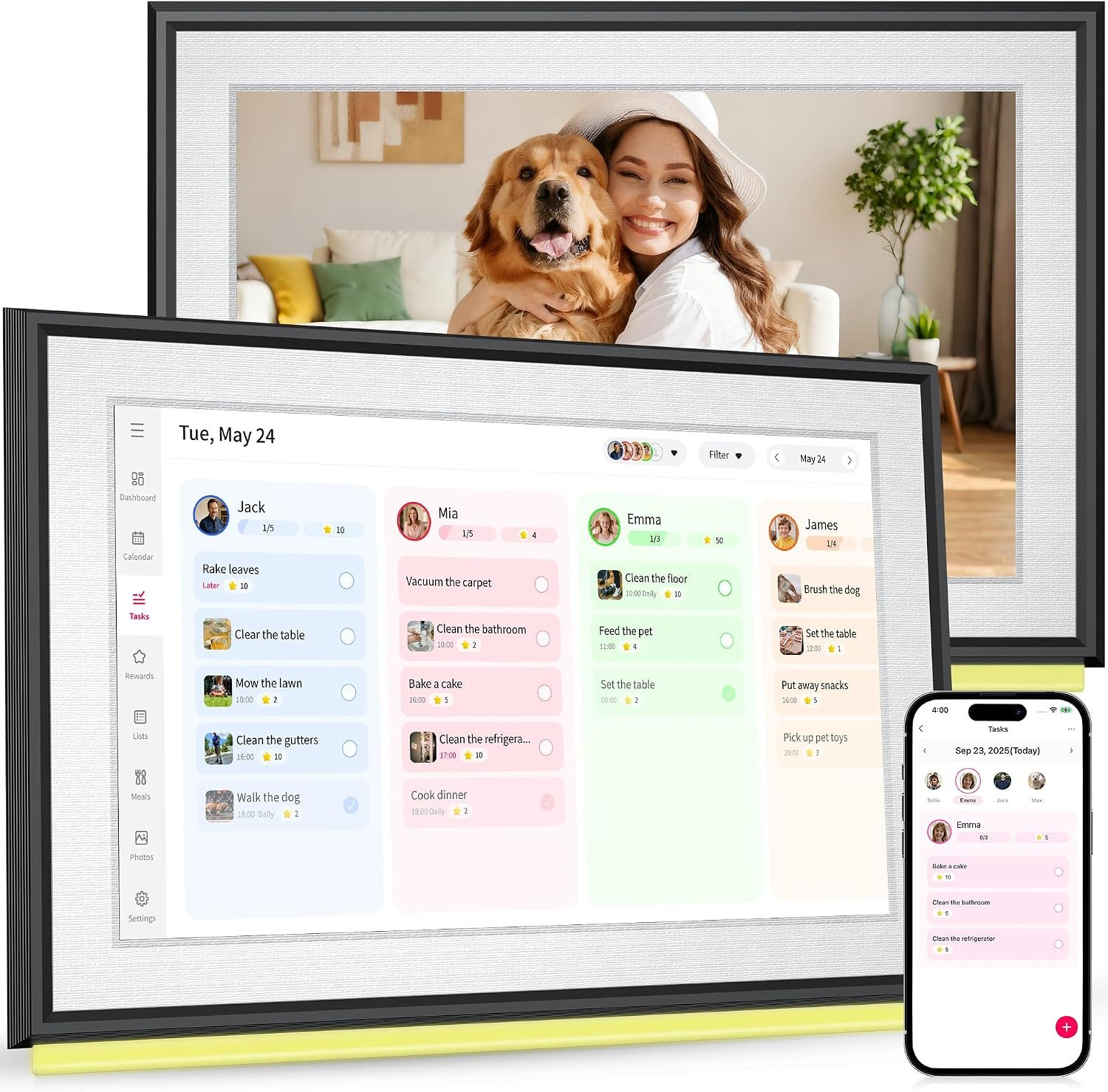
  • BIGASUO 10.1-Inch Digital Calendar: A Practical Guide to Smart Family Scheduling and Home Organization

    BIGASUO 10.1-Inch Digital Calendar: A Practical Guide to Smart Family Scheduling and Home Organization

    Keeping track of appointments, school activities, household responsibilities, meals, errands, and personal tasks can become surprisingly difficult when information is spread across several calendars, phone apps, paper notes, and messages. A digital family calendar can bring some of those planning activities into one visible location.

    The BIGASUO 10.1″ Digital Calendar is designed around this idea. It combines a touchscreen display with calendar and household organization features, including monthly, weekly, and daily scheduling, chore management, meal planning, to-do lists, family schedules, weather information, alarms, and digital photo display capabilities. The device uses Wi-Fi connectivity and can work with the Whale Framely companion application for synchronization and management.

    Rather than replacing every calendar or productivity application, a device like this is better understood as a dedicated visual planning screen for the home. Its purpose is to make important information easier to see and update without requiring everyone to open an individual smartphone.

    This guide explains how the BIGASUO digital calendar works, what its different functions can be used for, who may find this type of device useful, and what factors are worth considering before adding a smart calendar to a household.

    Introduction

    Traditional wall calendars have one important advantage: everyone can see them. A digital calendar attempts to preserve that shared visibility while adding features that are difficult to achieve with paper.

    The BIGASUO 10.1-inch model uses a touchscreen interface rather than printed calendar pages. According to the available product documentation, the device is identified as model 101C, has a 10.1-inch display, uses Wi-Fi connectivity, and is designed for desktop placement. The documentation also describes integration with the Whale Framely app and support for several calendar services, including Google Calendar, iCloud, Outlook, Cozi, and Yahoo Calendar.

    That combination can make the device relevant to households where several people need access to the same information.

    For example, a family might use one screen to show school events, work appointments, sports practices, household chores, meal plans, and grocery-related tasks. A couple might use it to coordinate work schedules and shared responsibilities. Someone living alone could use the display as a central daily planning station.

    The picture-frame functionality adds another dimension. Instead of showing schedules continuously, the display can also be used for photos and slideshow-style content through the companion application.

    The important distinction is that this is not simply a digital version of a paper calendar. It is a connected household display that combines several organizational functions.

    Key Features

    10.1-Inch Touchscreen Display

    The central component is a 10.1-inch touchscreen. This provides enough display area for calendar information, tasks, lists, and other household content while keeping the device relatively compact.

    A touchscreen can be particularly convenient for a shared calendar because users can interact directly with the display rather than relying entirely on a computer. The product documentation describes adding and managing events either on the device itself or through the companion application.

    For a household, the physical screen also changes how information is encountered. A phone notification can easily be ignored or buried among other notifications, whereas a dedicated display in a common area can remain visible throughout the day.

    Monthly, Weekly, and Daily Planning

    Different scheduling situations require different levels of detail.

    A monthly calendar is useful for seeing important dates at a glance. Birthdays, appointments, holidays, school events, trips, and other major commitments can be considered in the context of the entire month.

    A weekly view is more practical for everyday family coordination. It can show which days contain extracurricular activities, appointments, work commitments, meal plans, and household responsibilities.

    Daily planning goes further by focusing attention on individual tasks and events.

    Having multiple time scales available can help users move between long-term planning and immediate responsibilities without maintaining separate paper systems.

    Family Schedule Organization

    One of the central uses of a shared digital calendar is coordinating several people’s schedules.

    The available documentation indicates that tasks can be color-coded and assigned to individual family members. This can make a crowded schedule easier to interpret visually.

    For example, different colors could represent parents, children, household activities, school events, or shared commitments. The exact organizational system can be adapted to the household rather than requiring everyone to follow the same structure.

    This is particularly useful when the challenge is not simply remembering appointments, but understanding who needs to do what and when.

    Chore Charts

    Household chores can be handled separately from traditional calendar events.

    Instead of placing every recurring responsibility into a calendar, a chore system can provide a dedicated way to track tasks. Examples might include cleaning a bedroom, taking out trash, feeding a pet, organizing school supplies, or completing other recurring household responsibilities.

    The product documentation also references a rewards-related function in the updated software experience. Current product information indicates that the R-1.5.0 software version includes features such as Tasks, Rewards, Meals, and Photos.

    Families should check the software version and current application functionality because connected-device features can change through updates.

    Meal Planning

    Meal planning can be useful for both organization and reducing last-minute decisions.

    The BIGASUO calendar includes a meal-planning function that can be used to organize meals across the week.

    A simple weekly structure could include breakfast, lunch, and dinner. The plan could also be used to remind household members what is scheduled for a particular evening.

    For example:

    • Monday: Pasta with vegetables
    • Tuesday: Chicken and rice
    • Wednesday: Soup and sandwiches
    • Thursday: Fish with potatoes
    • Friday: Homemade pizza
    • Saturday: Leftovers
    • Sunday: Family meal

    The purpose is not necessarily to create a sophisticated nutritional planning system. Its value is in making the household’s food schedule visible and easier to coordinate.

    To-Do Lists and Shopping Tasks

    A dedicated digital to-do list can help keep small responsibilities from becoming forgotten notes.

    The documentation describes uses such as grocery lists and errands, with information capable of being updated and shared among family members.

    This can work well for tasks that do not belong on a calendar.

    For example, “buy laundry detergent” is different from “doctor appointment at 2 PM.” A calendar is primarily time-oriented, while a task list can focus on completion.

    Separating these two types of information can make a household planning system easier to understand.

    Digital Picture Frame

    The device can also function as a digital photo frame.

    According to the available documentation, photos and videos can be shared from a phone using the Whale Framely application, allowing the display to show a continuous slideshow.

    This means the device does not have to remain in calendar mode all the time.

    For example, it could display family photographs during periods when no one needs to check the schedule. At another time, the same screen can return to household planning.

    This dual-purpose approach can make a dedicated display more natural in a kitchen, home office, entryway, or common living area.

    Weather Information

    The documentation also lists a weather function that can display current conditions and forecasts.

    For a family calendar, this can be useful because weather can influence daily plans. Outdoor activities, commuting, school events, gardening, errands, and weekend activities may all depend on conditions.

    However, weather information should be treated as a convenience feature rather than a replacement for a dedicated weather service when detailed or critical forecasts are required.

    Alarms and Reminders

    The product documentation describes a switchable alarm function for reminders.

    This can provide another way to draw attention to scheduled activities.

    For example, a household could use reminders for:

    • Leaving for an appointment
    • Preparing for school
    • Starting dinner
    • Taking a break from a task
    • Preparing for an upcoming event
    • Completing a recurring household responsibility

    Reminder functions can complement the calendar rather than replacing the user’s primary phone alarms or other time-sensitive notification systems.

    How It Can Be Used

    Creating a Family Command Center

    One practical approach is to position the calendar in a shared area where household members naturally pass by.

    A kitchen counter, home office, hallway table, or another stable surface can work depending on the layout of the home.

    The objective is visibility. A digital calendar becomes more useful when people actually encounter it during their daily routines.

    The available setup instructions describe placing the device on a stable, flat surface. They also indicate that the model is designed for desktop use and does not require a mounting bracket.

    Organizing a Weekly Family Meeting

    A household can use the display during a weekly planning session.

    For example, on Sunday evening, family members could review:

    1. Appointments for the coming week
    2. School activities
    3. Work schedules
    4. Transportation requirements
    5. Chores
    6. Meals
    7. Shopping needs
    8. Special events
    9. Personal tasks

    Once the information is organized, the screen can remain visible throughout the week.

    This approach turns the digital calendar into a shared planning reference rather than simply a place where appointments are stored.

    Managing Children’s Responsibilities

    Families with children may use a visual task system to make responsibilities easier to understand.

    A chore chart could divide tasks by person and day. Color coding can provide an additional visual distinction.

    For younger children, a simple structure may be easier to follow than a long list of written instructions. Older children can potentially use the same system for school-related responsibilities, extracurricular activities, and household chores.

    Parents should still decide which responsibilities are appropriate for each child’s age and abilities. The calendar itself is an organizational tool, not a substitute for parental supervision.

    Coordinating Work and Home Schedules

    Remote workers, shift workers, freelancers, and couples with different schedules may benefit from a shared display.

    For example, one person might have meetings throughout the morning while another handles school pickup in the afternoon.

    Putting both schedules into a shared system can make potential conflicts easier to identify.

    The ability to connect external calendars is particularly relevant here. The product documentation lists Google Calendar, iCloud, Outlook, Cozi, and Yahoo Calendar among supported calendar integrations through the system.

    Users should verify current compatibility during setup because third-party integrations can change over time.

    Meal Planning and Grocery Preparation

    Meal planning can be connected directly with shopping tasks.

    For example, a family could create a weekly meal plan and then maintain a separate grocery list based on that plan.

    The process might look like this:

    Sunday: Decide meals for the week.

    Sunday evening: Add required ingredients to the shopping list.

    Monday through Friday: Refer to the meal plan when deciding what to prepare.

    After shopping: Remove or mark completed grocery tasks.

    This type of workflow can reduce the need to remember small details mentally.

    Using It as a Photo Display

    When the family schedule does not need to occupy the screen, photos can provide a more decorative function.

    The companion app supports sharing photos and videos from a phone, according to the available documentation.

    This can be useful in living spaces where users want the device to blend into the household environment rather than looking like a dedicated productivity screen at all times.

    Who It May Be Suitable For

    Busy Families

    A household with multiple schedules may find a centralized display useful for making shared commitments visible.

    The combination of calendars, chores, meals, and tasks means that several common planning categories can exist within the same system.

    Couples Sharing Household Responsibilities

    Couples can use a shared calendar to coordinate appointments, errands, meals, and household tasks.

    Color coding or task assignment may make responsibilities easier to distinguish.

    Remote Workers

    People working from home may use the display to separate professional scheduling from personal planning while keeping both visible in one place.

    It can also serve as a reminder system for breaks, appointments, errands, and household activities.

    Students and Shared Households

    Students or roommates can potentially use a shared display for cleaning schedules, shopping lists, shared events, and household responsibilities.

    In these environments, clarity about who is responsible for a task can be just as important as the task itself.

    People Who Prefer Visual Organization

    Some people naturally respond better to information displayed physically in front of them than to notifications hidden inside applications.

    A dedicated screen can provide an always-visible reference point.

    That does not mean everyone will prefer a digital calendar. People who enjoy paper planners or prefer minimal technology may find a traditional calendar simpler.

    Important Things to Consider

    Wi-Fi Is Important

    The BIGASUO digital calendar is a connected device. The setup documentation states that a stable Wi-Fi connection is required for full functionality and synchronization.

    This means the experience can depend on the quality of the household network.

    Before setup, consider whether the intended placement has reliable Wi-Fi coverage.

    Companion App Setup

    The device uses the Whale Framely application for synchronization and some management functions. The setup process involves downloading the application, creating or using an account, pairing the device, and connecting calendars.

    This introduces an additional step compared with a paper calendar.

    Anyone purchasing a connected organizer should be comfortable with installing an application and managing account permissions and connected services.

    Calendar Integration Should Be Verified

    The available manual lists several supported calendar services, but software integrations can evolve.

    Before relying on the device for an important workflow, users should verify that the calendar platform they depend on is currently supported and that the desired synchronization functions are available in their region and software version.

    This is particularly important for households that rely heavily on one specific calendar ecosystem.

    Software Updates Can Change Functionality

    Current product information references software version R-1.5.0 and identifies newer or enhanced functions involving Tasks, Rewards, Meals, and Photos.

    This illustrates an important point about smart household devices: the capabilities may not remain completely static.

    Users should periodically check the device’s update settings and consult the manufacturer’s documentation for current functionality.

    Screen Size

    A 10.1-inch screen is compact enough for a countertop or desk, but it is not comparable to a large wall-mounted display.

    This matters when deciding how much information should appear simultaneously.

    A small household may find the size appropriate for a central counter. A large family attempting to display many schedules simultaneously may need to organize the information carefully to avoid visual clutter.

    Desktop Placement

    The available manual describes the device as designed for desktop placement on a stable, flat surface.

    Therefore, placement should be considered before purchase.

    A suitable location should provide:

    • Stable support
    • Easy visibility
    • Access to electrical power
    • Reliable Wi-Fi
    • Enough space around the device
    • Protection from spills and excessive moisture

    A kitchen can be convenient, but the display should not be positioned where it is likely to be splashed or exposed to steam.

    Privacy and Shared Information

    A family calendar can contain personal information such as appointments, names, schedules, activities, and household routines.

    Users should consider who can physically see the screen and which external calendars are being synchronized.

    Account permissions and connected services should be configured carefully. Sensitive information does not necessarily need to be displayed on a shared household screen simply because it exists in a connected calendar.

    Power Requirements

    Unlike a traditional calendar, a digital display needs electrical power.

    That means the intended location should have access to an appropriate outlet and the cable should be positioned safely.

    This is a small practical detail, but it can have a significant effect on where the device can be placed.

    Comparing General Digital Calendar Categories

    The BIGASUO device belongs to a broader category of digital planning and smart-display products. Different categories solve similar organizational problems in different ways.

    Paper Calendars

    Paper calendars are simple, inexpensive to maintain, and independent of Wi-Fi, software, accounts, or electrical power.

    Their main limitation is that updates must be made manually and information cannot automatically synchronize across multiple digital services.

    A paper calendar may therefore remain perfectly suitable for people who want a straightforward visual schedule without connected features.

    Smartphone Calendar Apps

    Smartphone applications provide portability and sophisticated notification systems.

    A phone can accompany its owner almost everywhere, making it practical for personal scheduling.

    The disadvantage is visibility. A phone calendar is generally designed around an individual rather than a shared household display.

    A dedicated digital calendar approaches the problem from the opposite direction: it prioritizes shared visibility over portability.

    Tablet-Based Planning

    A standard tablet can be used for calendars, task applications, meal planning, photo display, and many other activities.

    Its major advantage is flexibility. Users can install different applications according to their needs.

    A dedicated calendar display, however, may provide a more focused experience because its primary purpose is household organization.

    The choice between the two depends on whether flexibility or dedicated functionality is more important.

    Smart Displays

    General smart displays can combine calendars, weather, media, voice assistants, smart-home controls, and other functions.

    They may be attractive to households already invested in a particular smart-home ecosystem.

    A dedicated digital family calendar places more emphasis on scheduling, chores, meals, tasks, and family organization.

    Dedicated Digital Family Calendars

    This category sits between paper calendars and general-purpose smart displays.

    The primary goal is to provide a shared household planning screen without requiring every person to repeatedly check a personal device.

    The BIGASUO 10.1-inch model fits into this category through its combination of calendar views, tasks, chores, meal planning, family scheduling, and photo display functions.

    Practical Organization Tips

    A digital calendar can become less useful if too much information is placed on it.

    One approach is to establish a simple information hierarchy.

    Use the calendar for events with specific dates or times.

    Use the task section for things that need to be completed but do not necessarily have a fixed appointment.

    Use the meal planner for food-related planning.

    Use the chore system for recurring household responsibilities.

    Use the photo function when the display is not needed for planning.

    Color coding can also be useful, but too many colors can create confusion. A small, consistent color system is usually easier to understand.

    Another useful practice is to review the calendar regularly. A digital display can synchronize information, but it cannot automatically determine whether a family schedule still reflects everyone’s current plans.

    Frequently Asked Questions

    What is the BIGASUO 10.1-inch digital calendar?

    It is a Wi-Fi-enabled touchscreen household organizer designed for calendar management, family schedules, chores, meal planning, to-do lists, reminders, weather information, and digital photo display. The documented model is 101C.

    Does it connect to Wi-Fi?

    Yes. The setup documentation describes Wi-Fi configuration as part of the initial setup process and states that a stable internet connection is needed for full functionality and synchronization.

    Does it work with Google Calendar?

    The available product manual lists Google Calendar among the calendar services that can be connected through the system. It also lists iCloud, Outlook, Cozi, and Yahoo Calendar.

    Because software integrations can change, users should confirm current compatibility when setting up the device.

    Can family members use it for chores?

    Yes. Chore-chart functionality is one of the intended uses of the device. Tasks can be organized visually and assigned to family members according to the available documentation.

    Can it be used for meal planning?

    Yes. The device includes meal-planning functionality designed to help organize meals across the week.

    Can it display photos?

    Yes. The device can function as a digital photo frame, with photos and videos shared through the Whale Framely application according to the available documentation.

    Does it have a weather function?

    The product documentation lists weather information and forecasts as an additional feature.

    Is the device portable?

    It is designed primarily as a powered desktop display rather than a battery-powered portable organizer. The setup instructions describe connecting it to a power adapter and placing it on a stable, flat surface.

    What size is the screen?

    The documented screen size is 10.1 inches. The product specification information identifies the model as 101C and lists a white plastic construction.

    Does it require a smartphone?

    The device can be operated through its touchscreen, but the setup process uses the Whale Framely companion application for pairing, synchronization, and certain management functions.

    Can it replace a smartphone calendar?

    It does not necessarily need to replace one. A dedicated display and a smartphone calendar can serve different purposes. The phone is convenient for personal access and mobility, while the dedicated display can provide a shared household reference point.

    Is it suitable for a large family?

    That depends on how much information needs to be displayed at the same time. The 10.1-inch screen provides a relatively compact shared display, so larger households may benefit from keeping their schedules organized and limiting unnecessary information.

    Does the device receive software updates?

    Available product information references software version R-1.5.0 and provides instructions for checking for updates through the device settings.

    Users should follow the manufacturer’s current instructions because software features and update procedures can change.

    Conclusion

    The BIGASUO 10.1″ Digital Calendar is designed around a simple organizational concept: place shared household information on a dedicated touchscreen that everyone can see.

    Its functions extend beyond traditional calendar management. Monthly, weekly, and daily schedules can be combined with family tasks, chore organization, meal planning, to-do lists, weather information, reminders, and digital photographs. The device also supports synchronization through the Whale Framely application and lists compatibility with several established calendar services.

    The most important consideration is not simply the number of functions available. It is whether a shared visual planning system fits the way a household already organizes information.

    For families that frequently coordinate appointments, chores, meals, errands, school activities, and work schedules, having a dedicated screen in a common area can provide a different experience from relying exclusively on individual smartphones. At the same time, people who prefer paper calendars, minimal technology, or completely portable planning may have different requirements.

    As with any connected household device, it is also worth considering Wi-Fi availability, companion-app setup, calendar compatibility, software updates, privacy, placement, and power requirements before making a decision.

    When used with a consistent household planning routine, a digital calendar can serve as more than a calendar. It can become a central visual reference for the activities that keep everyday life moving.

    You can check more details on Amazon here.

    Amazon Associates Disclosure: As an Amazon Associate, we earn from qualifying purchases.